
Tutorials
Choose a tutorial below to jump directly to the topic you need.
Getting started
Follow these steps to prepare your GitHub account, register with aiDACTO, connect GitHub, add students, and create your first task with AI assistance. You can create tasks before adding students. Further tutorials will guide you through the rest of the lector workflow.
Prerequisite: a GitHub account and organization
Before creating student repositories, prepare a GitHub account and an organization to own those repositories. GitHub is separate from your aiDACTO sign-in; you will connect it to aiDACTO during setup.
- Create a free GitHub account. Go to GitHub sign up, enter an email address, choose a username and password, and complete GitHub's email verification. GitHub's free plan is sufficient for following this tutorial.
- Create a free organization for the class or course. While signed in to GitHub, open GitHub's organization creation page. Choose the free plan, provide an organization name and contact email, and finish the setup. Choose a name that your students and colleagues can recognize; this organization will own the student repositories.
- Keep access to the organization. Use an account you control as an organization owner, and make sure you can create repositories there. When connecting GitHub to aiDACTO, authorize the organization if GitHub asks you to grant it access.
- Collect your students' GitHub usernames. Ask each student for their GitHub account name so you have it ready when adding students to aiDACTO. Students can use free GitHub accounts as well. If they do not have an account yet, ask them to create a free GitHub account and share their username with you.
For now, this account and organization setup is a prerequisite for the repository workflow described here. We expect this requirement and setup process to change in a future version of aiDACTO; these instructions will be updated when that happens.
Step 1: Register and sign in to aiDACTO
Choose your email address
Register with an email address you can access. This is the address you will use to sign in, and aiDACTO also uses it to send notification emails, for example when an analysis is ready. If you are assigned to a school, you can also receive information from your school administrator at this address.
If your school is registered with aiDACTO, consider using your school email address to help associate your account with the school. Check with your school administrator if you are unsure which address to use.
Open registration
On the aiDACTO home page, select Login / Register in the navigation.
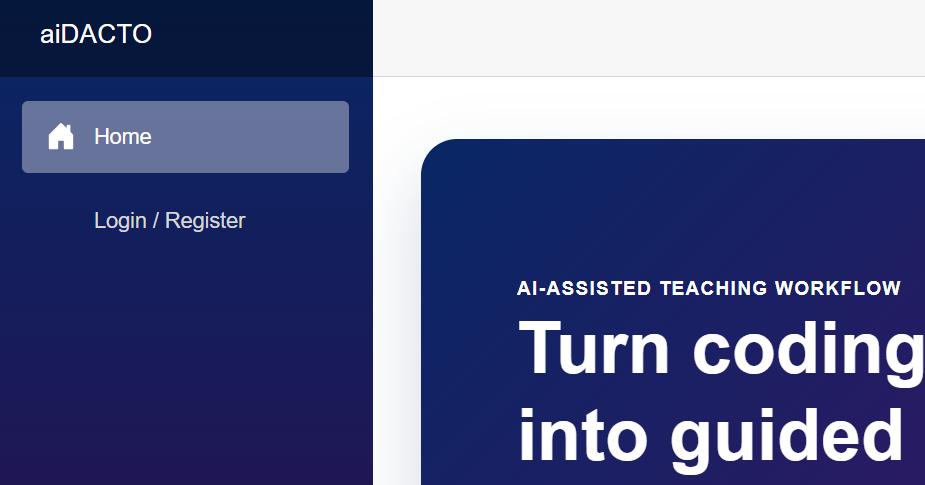
The Login / Register option opens the sign-in page. Create a new account
On the Sign in page, select No account? Create one. If you already have an aiDACTO account, sign in with your existing email address instead.
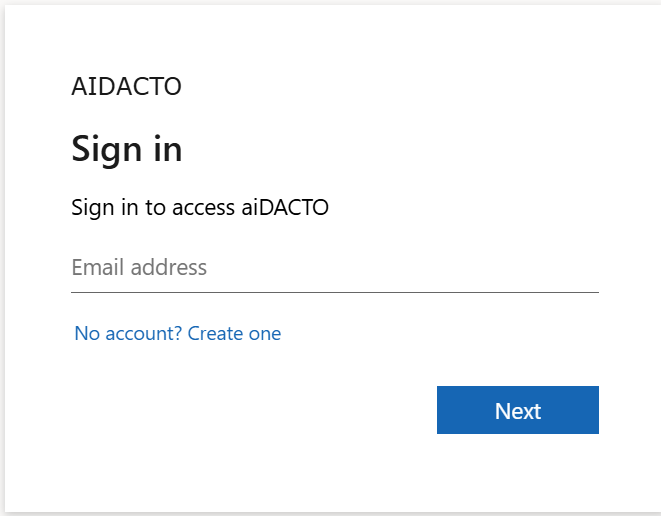
Choose Create one to register for aiDACTO. Enter your email address
On the Create account page, enter the email address you chose and select Next. Use your own address; the addresses in these screenshots are examples.
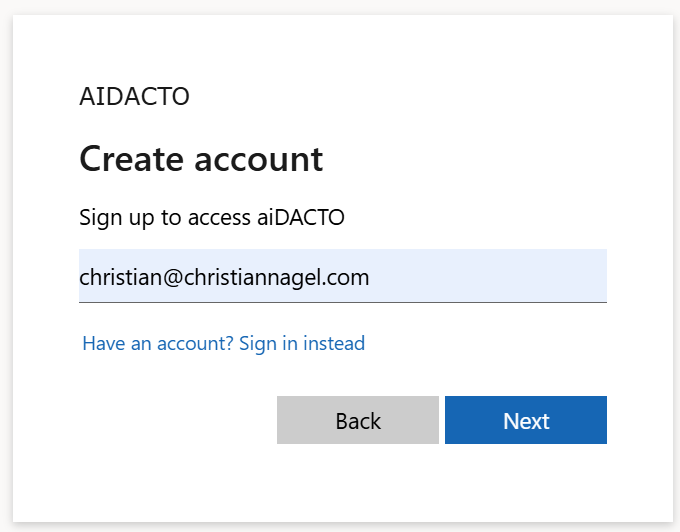
Enter the address you will use for sign-in and notifications. Verify your email address
A verification code is sent automatically to your email address. Open your inbox, copy the code, enter it on the Enter code page, and select Next. The code is valid for 30 minutes.
If the email has not arrived, check your spam or junk folder and confirm that you entered the correct address. If the code expires, request a new code before continuing.
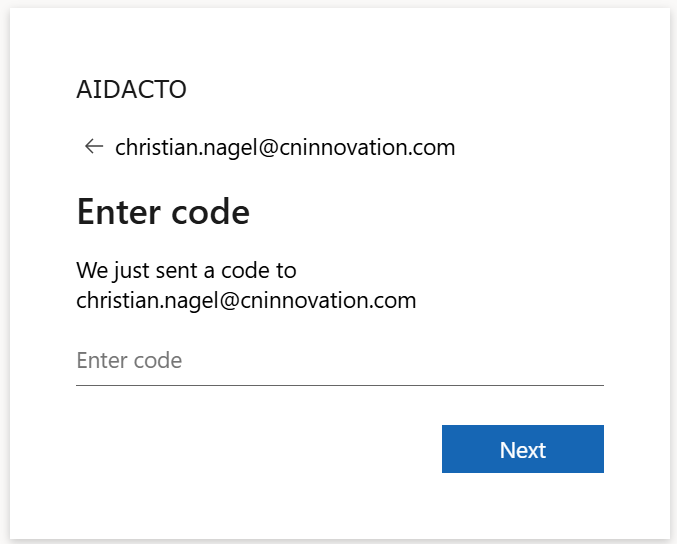
Enter the automatically emailed verification code within 30 minutes. Complete your details and sign in
Complete the remaining registration details when prompted, then sign in to aiDACTO. After signing in, additional menus become available, including Students, Tasks, Assignments, Analysis, and Repositories. Your account menu appears at the bottom of the navigation, along with Connect GitHub if you have not linked your GitHub account yet.
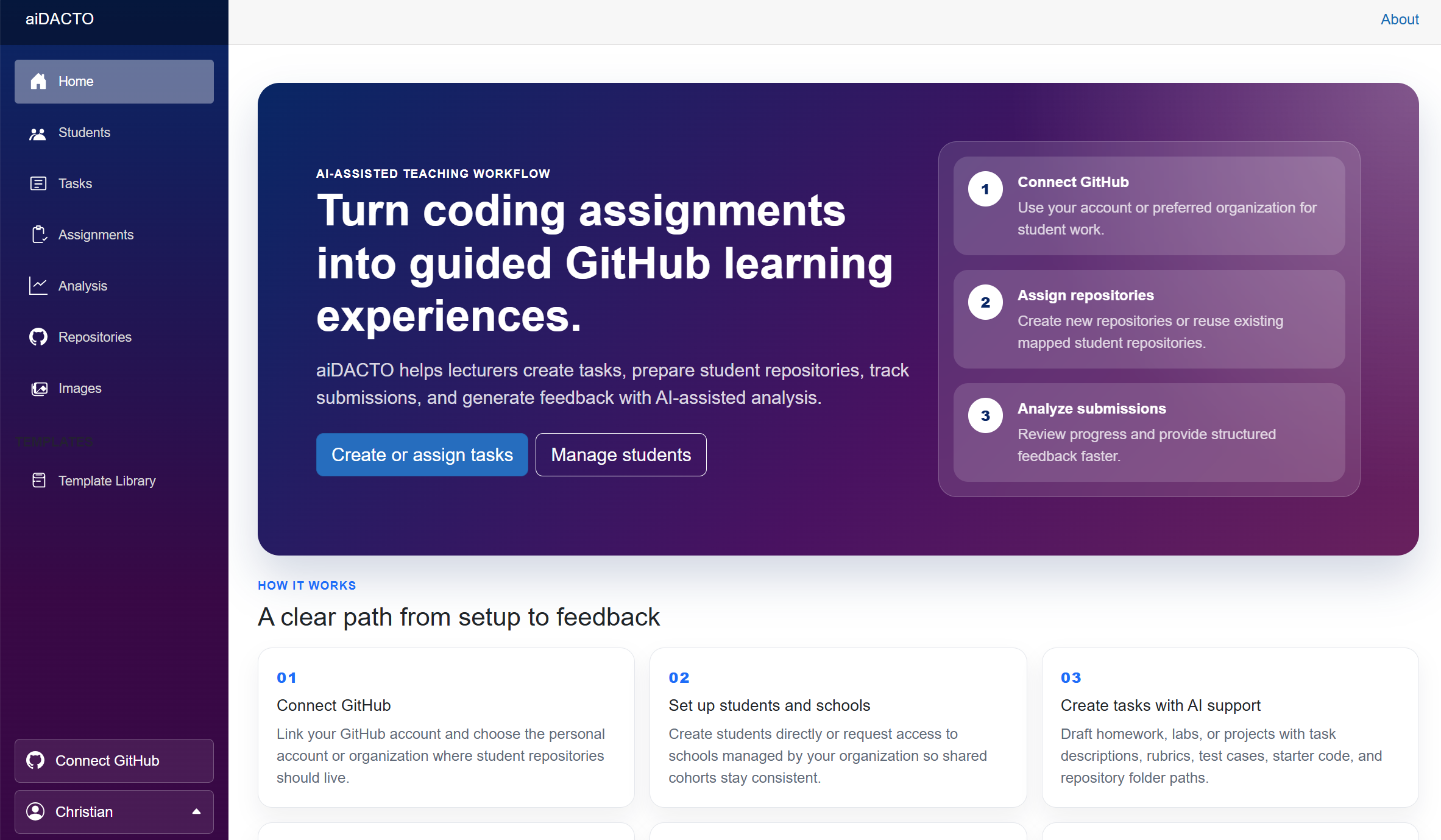
After sign-in, the navigation provides access to the teaching workflow.
Step 2: Connect GitHub and choose your organization
Connect your GitHub account so aiDACTO can work with your course repositories. This authorizes repository access; it does not replace your aiDACTO sign-in or automatically create repositories or issues.
Connect your GitHub account
Select Connect GitHub near the bottom of the left navigation pane. Sign in to GitHub with the account you prepared earlier, if prompted. Use your own GitHub credentials; the account shown in the screenshot is an example.
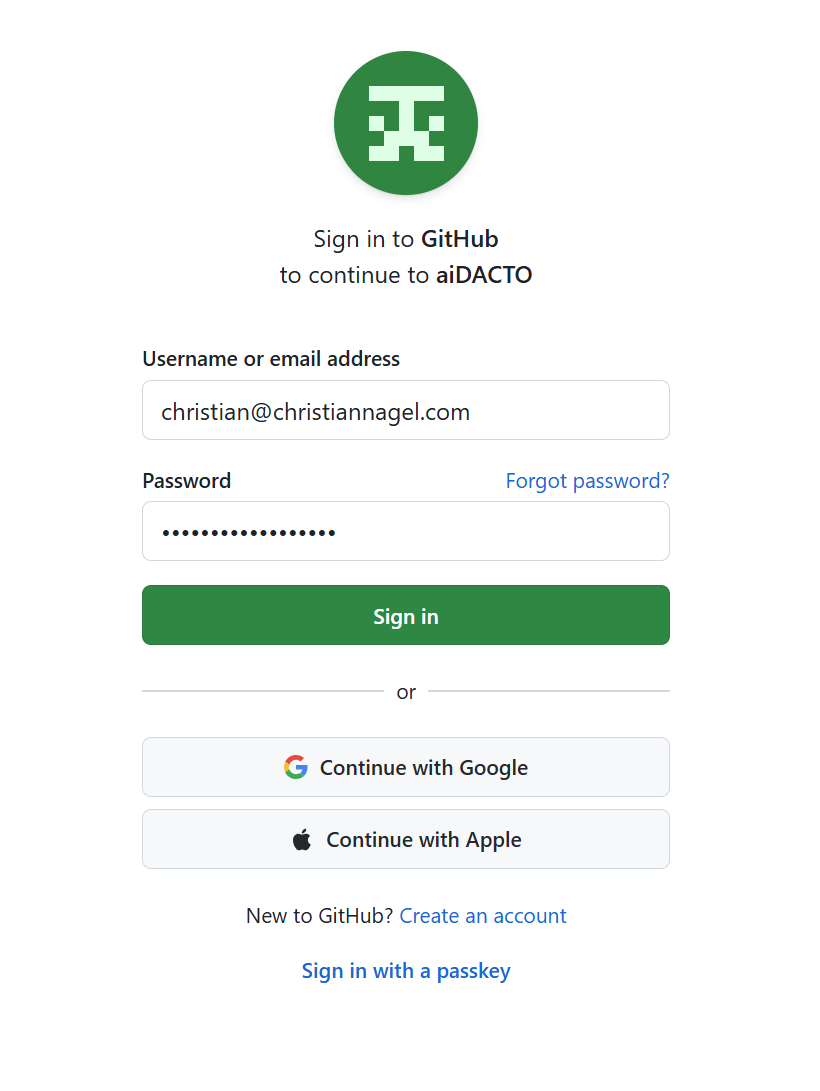
Sign in to GitHub to link your repository account to aiDACTO. Authorize aiDACTO and grant organization access
Review GitHub's authorization request and allow aiDACTO to use your GitHub account. Grant access to each organization that aiDACTO needs for your course:
- The organization where repositories for individual students or groups of students should be created.
- The organization containing sample source code that you want to copy into student repositories.
These can be the same organization or different organizations. Your GitHub account must also have the necessary permissions to create repositories at the destination and read the sample-code repositories. If GitHub requires an organization owner's approval, request that approval before continuing.
Choose the preferred GitHub organization
Back in aiDACTO, open the GitHub button showing your GitHub username in the left navigation pane and select GitHub Settings. In Preferred GitHub Organization, select the organization where new student repositories should be created, then select Save GitHub Settings.
This preference sets the destination for new repositories; it does not move existing repositories. The organization holding your sample code can be different and does not need to be your preferred destination.
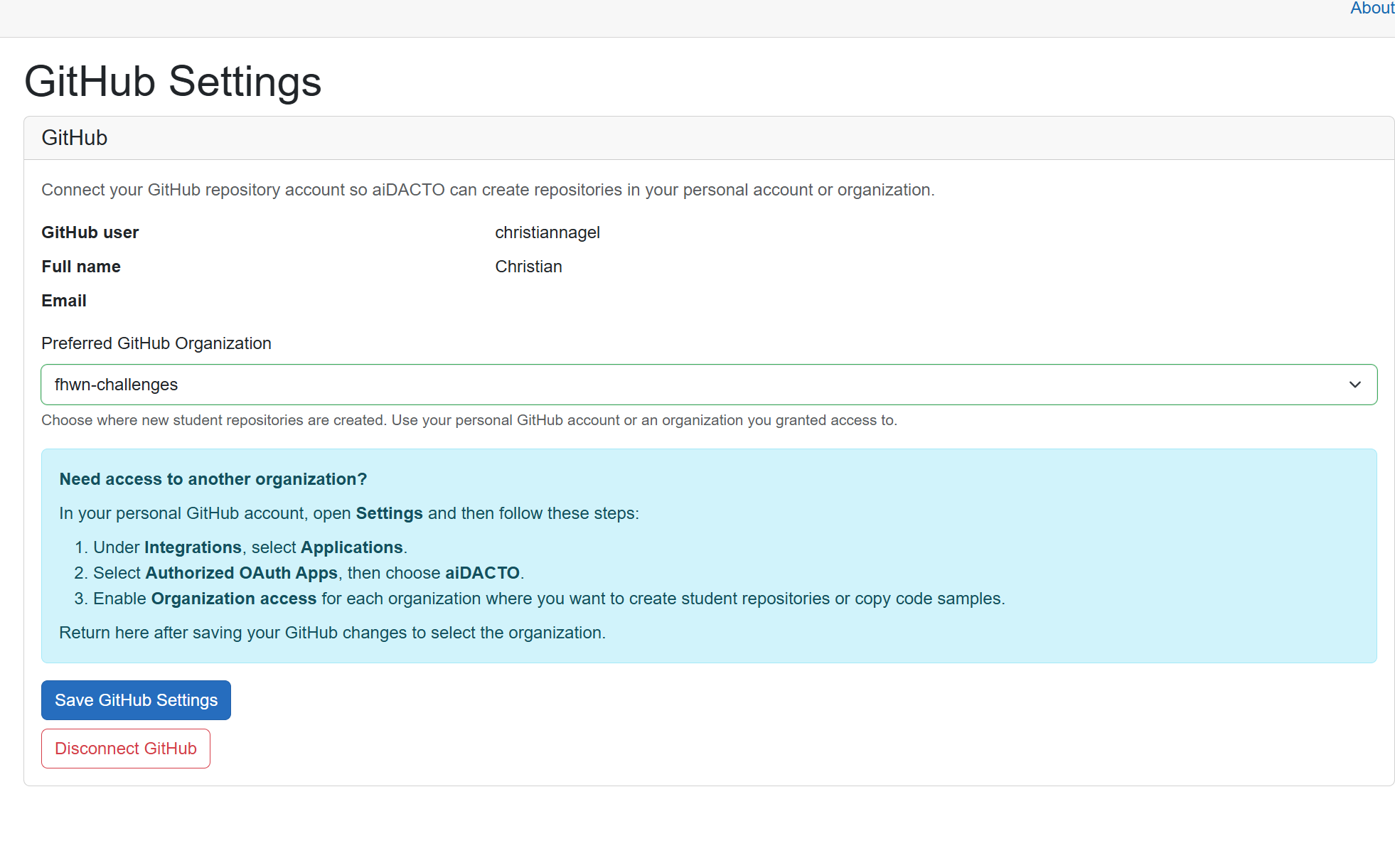
Select and save the organization that should own new student repositories. If an organization is missing from the list
Check aiDACTO's organization access in your personal GitHub account settings, not in aiDACTO's Profile page:
- On GitHub, open Settings.
- Under Integrations, select Applications.
- Select Authorized OAuth Apps, then choose aiDACTO.
- Under Organization access, grant access to the organization where student repositories should be created and to any organization containing the sample code you want to use. Request approval from an organization owner if required.
- Return to aiDACTO and reload GitHub Settings. Select the preferred organization and choose Save GitHub Settings.
You stay in control of changes on GitHub
With GitHub connected, aiDACTO can create repositories for individual students or groups, upload sample code and task instructions, and create GitHub issues from analysis results. Authorizing access alone does not start these actions.
- You explicitly start repository creation. Review the selected students or groups and the repository settings before confirming. For example, for a class of 30 students, one confirmation click can start creating 30 repositories, one per student. You do not need to create each repository separately.
- You approve issues within aiDACTO. After an analysis, review the findings and decide which feedback to publish. No GitHub issue is created without your approval in aiDACTO.
Step 3: Open your Profile and choose template languages
Open your account menu near the bottom of the left navigation pane and select Profile. This page contains your repository-provider preference, template languages, and school options. It is separate from GitHub Settings, where you selected the organization for student repositories.
Review the repository provider
Under Repository provider, GitHub is currently the only available provider. This will change in the future as support for additional repository providers becomes available. For now, leave GitHub selected.
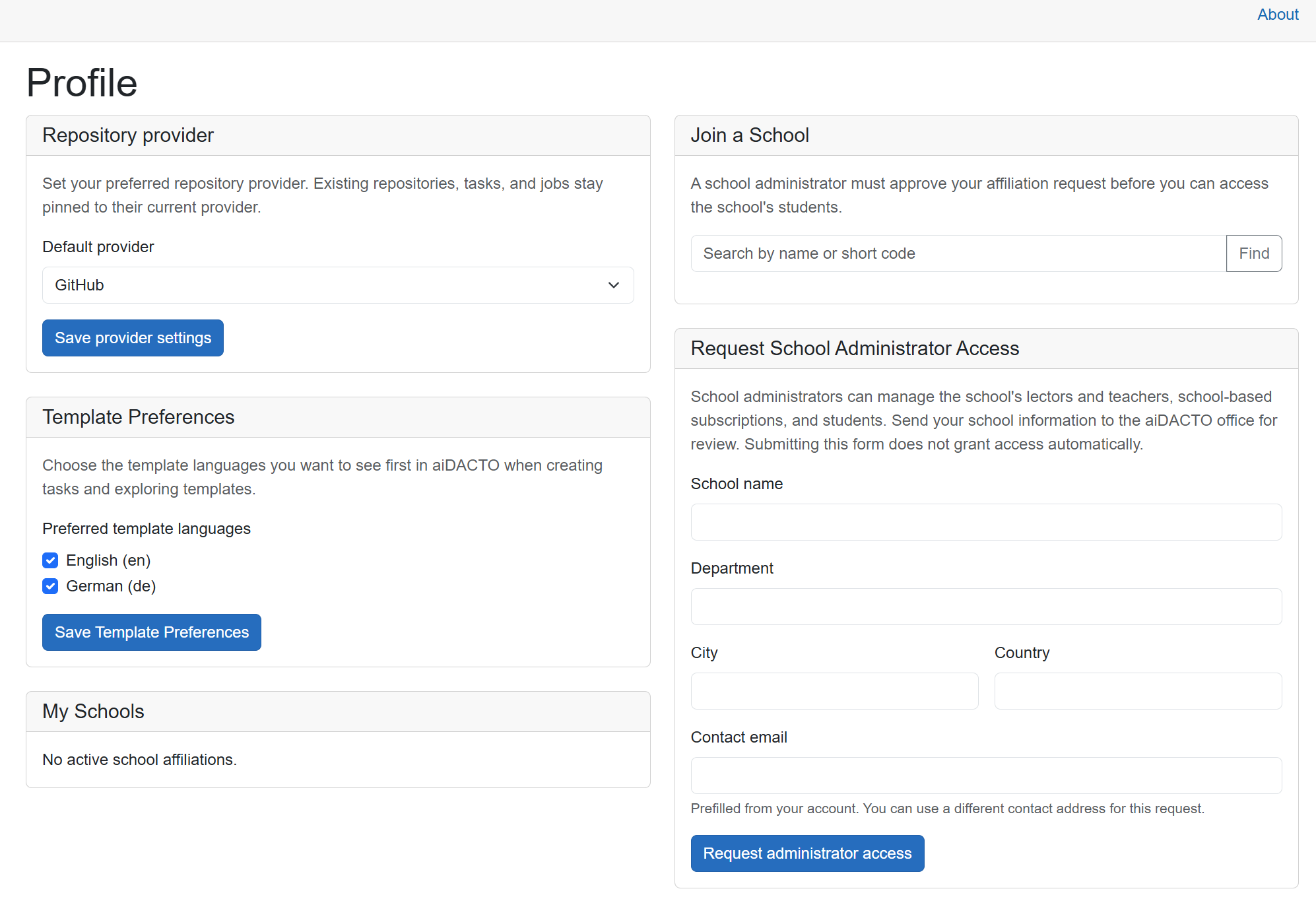
The Profile page brings together your preferences and school options. Choose the template languages you want to use
aiDACTO provides templates for creating homework, team projects, tests, and other assignments. Templates can come from three levels:
- Global templates are provided with the application.
- School templates are customized for your school.
- Personal templates are customized for your own aiDACTO account.
Templates are currently available in English and German. To keep the template list shorter, select the language or languages you want to use under Template Preferences and deselect the others. Keep at least one language selected, then choose Save Template Preferences. For example, select only English if you do not need German templates, or keep both selected if you teach in both languages.
Review the school options
If you act as a school administrator, open the form with Request school administrator access in the Request School Administrator Access section to request that role. See school administrator Step 2 for the walkthrough. A school administrator can:
- Customize templates for the school.
- Add shared school students so that each lector does not need to enter the same students separately.
- Manage the school's aiDACTO subscription and payment.
Requesting access does not grant the role automatically; the request must be reviewed. If you are not a school administrator, ignore this section.
If your school already has an administrator in aiDACTO, you can request membership through Join a School. The school administrator must approve your request before you can access the school's students. Your active affiliations appear under My Schools.
Joining a school will be covered in a separate tutorial. For this step, it is enough to choose and save your template languages.
Step 4: Add your students
Open Students from the left navigation. If you have not joined a school, you may not see any students listed yet. You can still add students for your classes or workshops as personal students, managed with your own aiDACTO account.
Add a student
Select Add Student on the Students page. Choose a name that helps you recognize the student. It does not have to be their real name; use a name or label you can identify. A student name together with the student ID makes it easier to find the right student later.
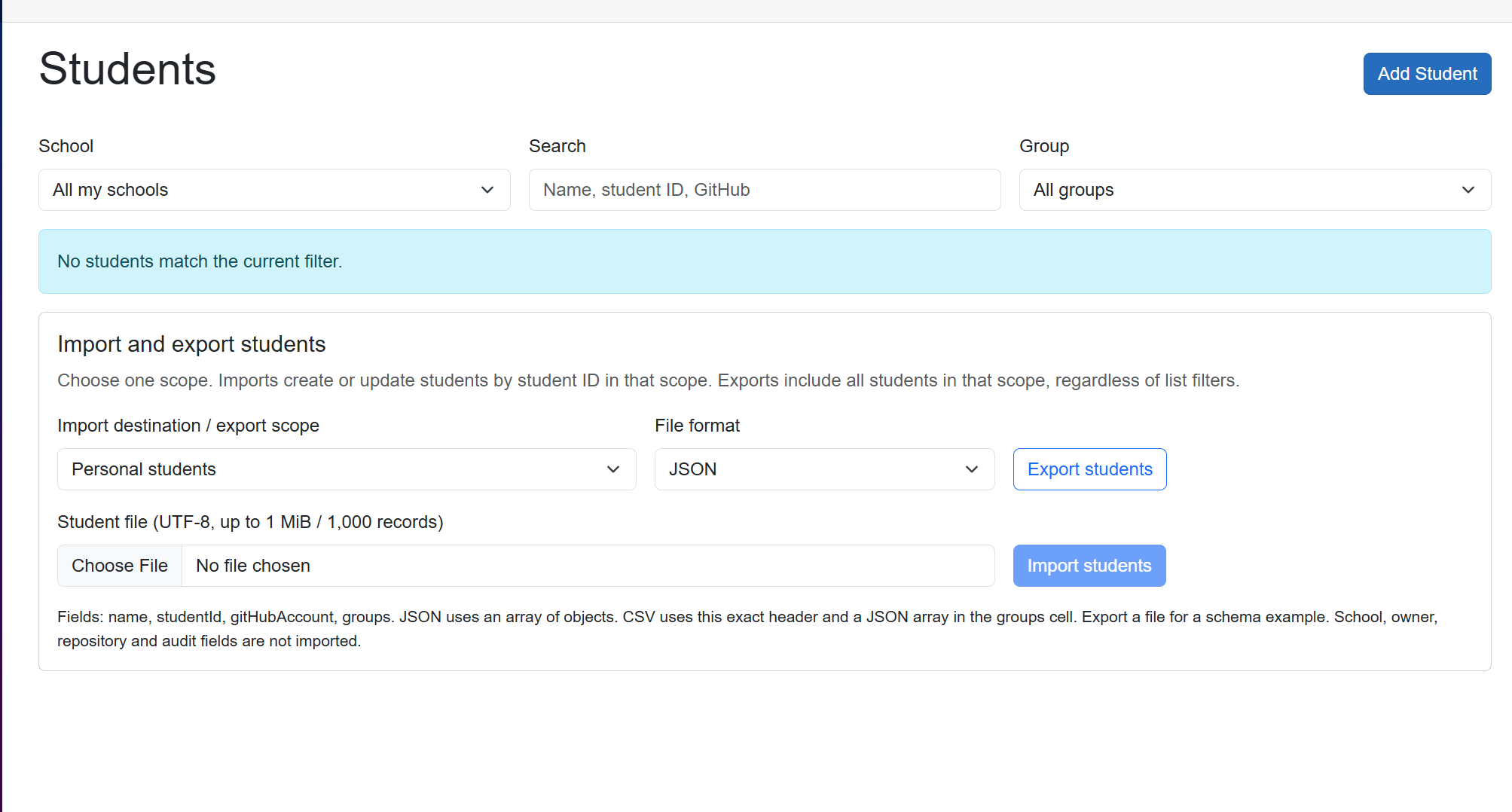
Without school affiliations or personal students, the list is empty. Use Add Student to add a personal student. Enter the student's details
Enter the student's name and student ID; both are required. Enter the student's GitHub account name so it is ready when you create or assign repositories. You collected these account names as part of the prerequisites.
Add one or more groups, separated by commas. A group can be a class or workshop, or a project team where students collaborate. A student can belong to more than one group. Select Create Student when you are done.
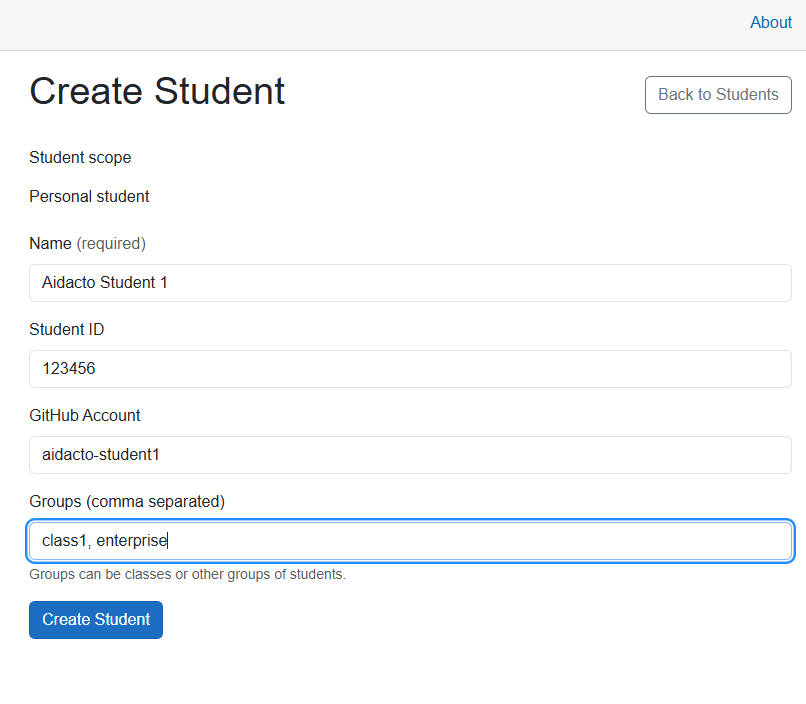
Enter the identifying details, GitHub username, and any class or team groups. Use groups to organize repository work
Groups make it easier to prepare repository work for either a whole class or a project team. In a later repository workflow, you can create one repository per student in a selected group, or create one shared repository for the group and invite its students automatically.
Find and manage your students
After you create students, they appear in the Students list. Use the group filter to show a class or team, or search by student name, student ID, or GitHub account name.
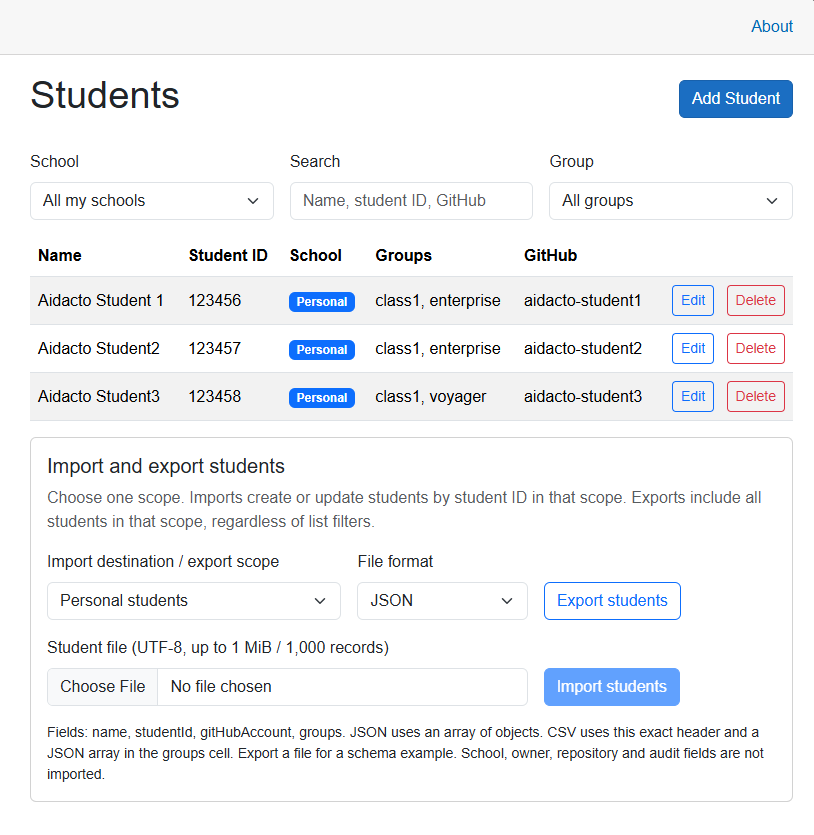
Once added, students can be filtered by group or found by name, ID, or GitHub username. Import or export a student list
You do not need to enter every student one at a time. In Import and export students, choose the personal-student scope, export the full list as JSON or CSV, then edit the exported file to add more students and import it again. Imports match students by student ID in the selected scope, so existing records with the same ID are updated and new IDs are added. Export is for the selected scope and includes all its students, even if the list above is filtered.
Keep the exported field names and format when editing the file. Each record can include the student name, student ID, GitHub account name, and groups. This is a convenient way to prepare a class list in a spreadsheet or text editor and then load it into aiDACTO.
Step 5: Create a task with AI assistance
Tasks describe what students need to do: homework, labs, programming tests, team projects, and more. You can create tasks before adding students, even if you do not yet know who will take part. Students and groups are needed later, when you assign the task. This is also one of the areas where aiDACTO uses AI to help you prepare your teaching material.
Open the task editor
Select Tasks from the left navigation. When you open this page for the first time, no tasks are available. Select Create Task to open the editor, which is divided into several areas.
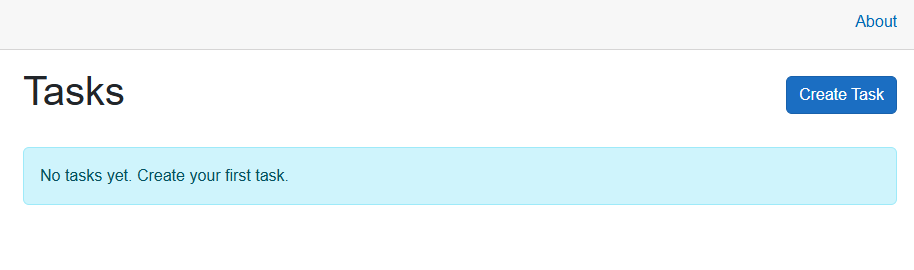
Start with Create Task; you do not need to add students first. 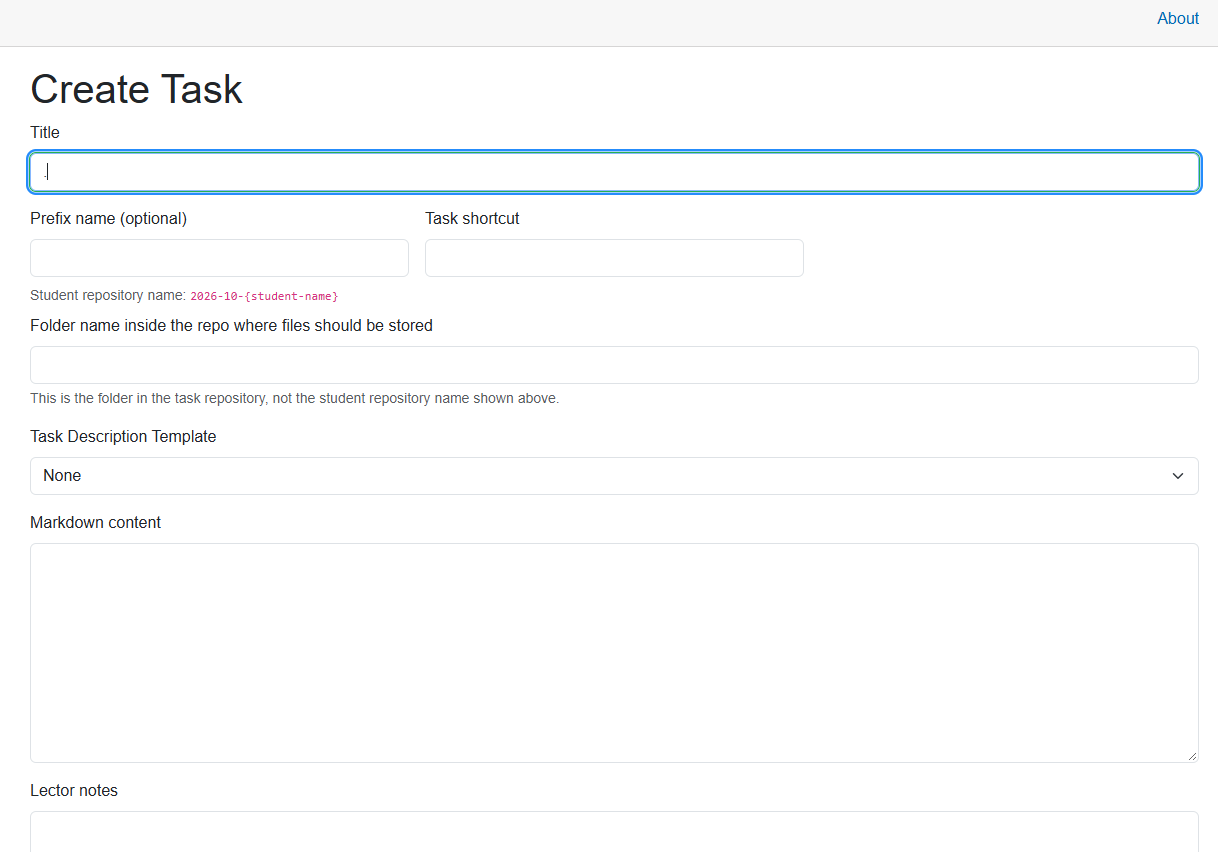
The editor brings together task instructions, sample code, and AI configuration. Name the task and plan the repository layout
Enter a Title. In this example, use C# pattern matching lab. Set the Task shortcut to
patternsfor quick searches, and optionally enterlabsas the Prefix name. The repository-name preview shows how these values will be used, for examplelabs-patterns-2026-10-{student-name}.Repositories are created later, when you assign the task, in the GitHub organization you selected earlier and control. For group work, the group name is used instead of the student name. Creating or saving a task does not create these repositories yet.
You can also keep several labs in one repository for each student instead of creating a separate repository for every lab. In that case, use a separate folder for each task. Enter
lab1in Folder name inside the repo where files should be stored for this example. This is a folder inside the repository, not the repository name.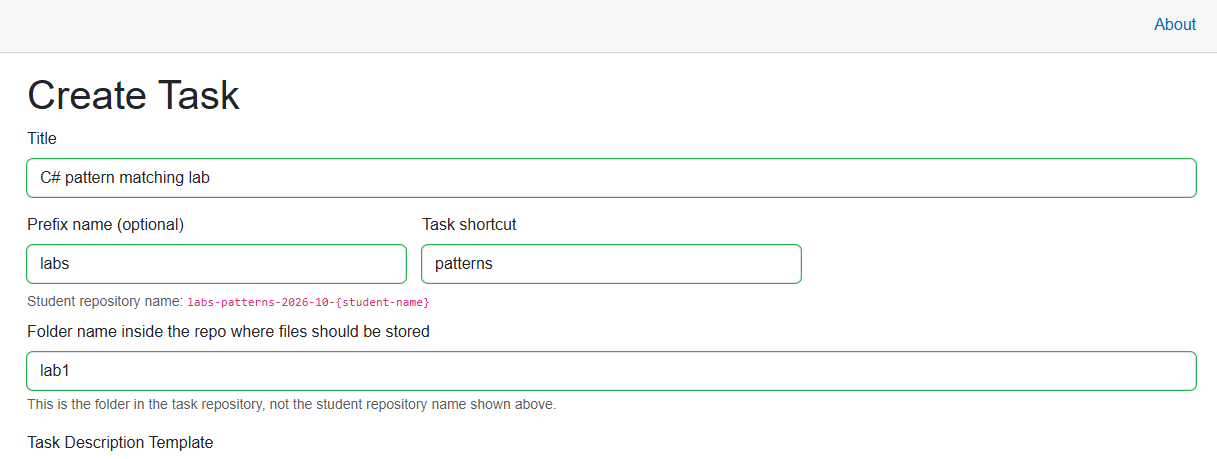
Choose a recognizable title, a search shortcut, and the destination folder for this lab. Choose a task description template
You can write the instructions yourself in Markdown content, or start with a Task Description Template. The list includes available global, school, and personal templates, filtered by the template languages you selected in your Profile.
Select Homework for this example. Selecting a template automatically fills the Markdown content. Review it and customize it as needed. You can also create your own templates for exercises you prepare regularly.
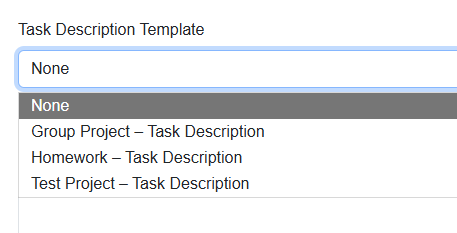
Select a template to provide the structure for the student instructions. 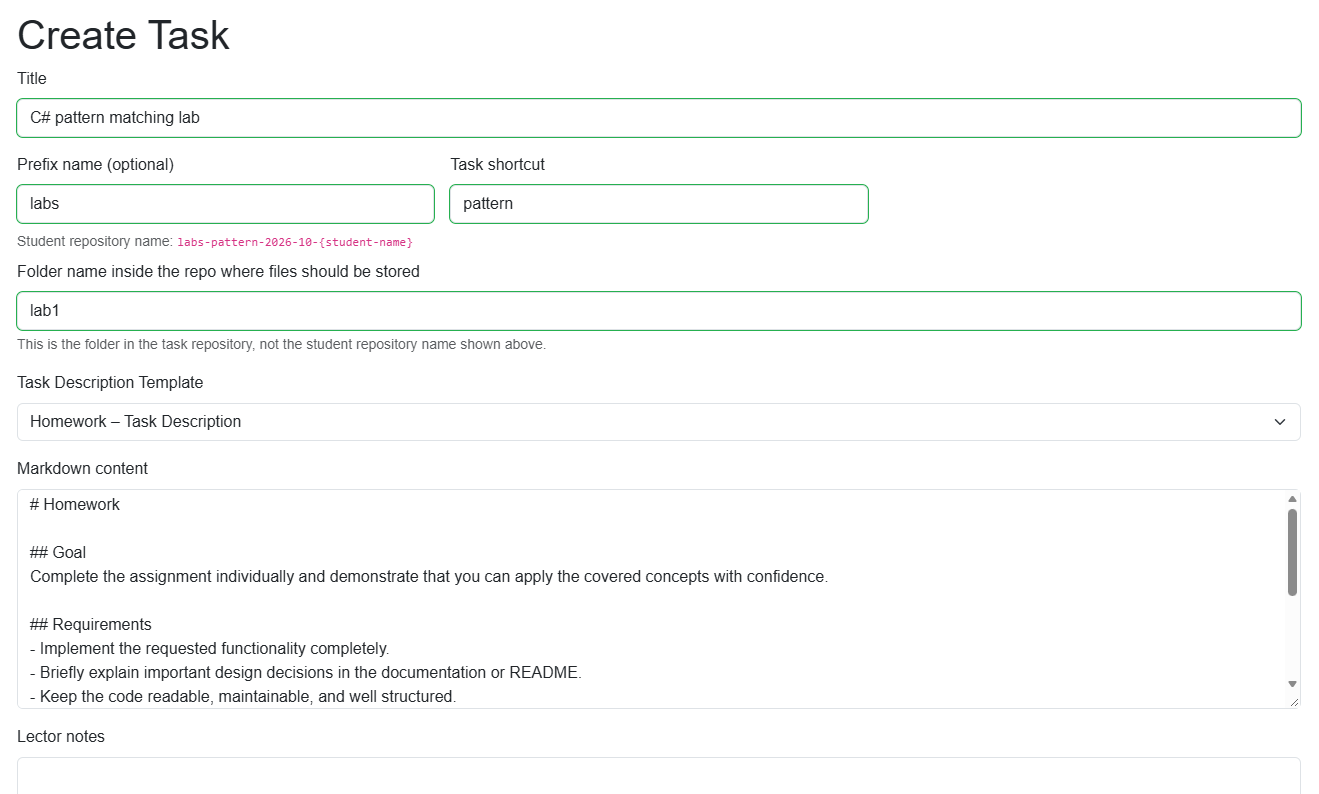
The selected template fills the Markdown content, which you can edit before generation. Describe the learning goal in Lector notes
Lector notes are the important input for AI-assisted task creation. Briefly describe what students should do and what they should learn. For this lab, enter:
The student should copy the existing source code from the starter folder to the final folder and change it to use all the different C# pattern matching features that are useful with the existing code.
These notes guide generation of the final student-facing instructions. You do not need to write the complete exercise here; you will review and refine the generated text before saving.
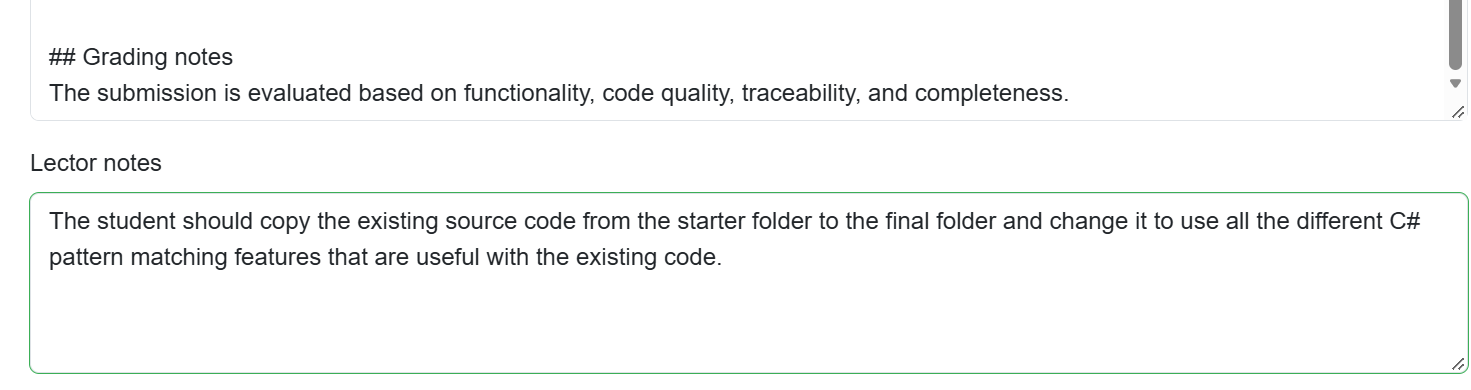
Explain the exercise and learning goal so the AI can draft suitable instructions. Select optional starter code
In Optional code samples, select the GitHub repository containing the code you want to provide to students. Opening the repository selector for the first time can take a while, depending on how many repositories you can access. aiDACTO caches this information, so selecting a repository for the next task can be much faster.
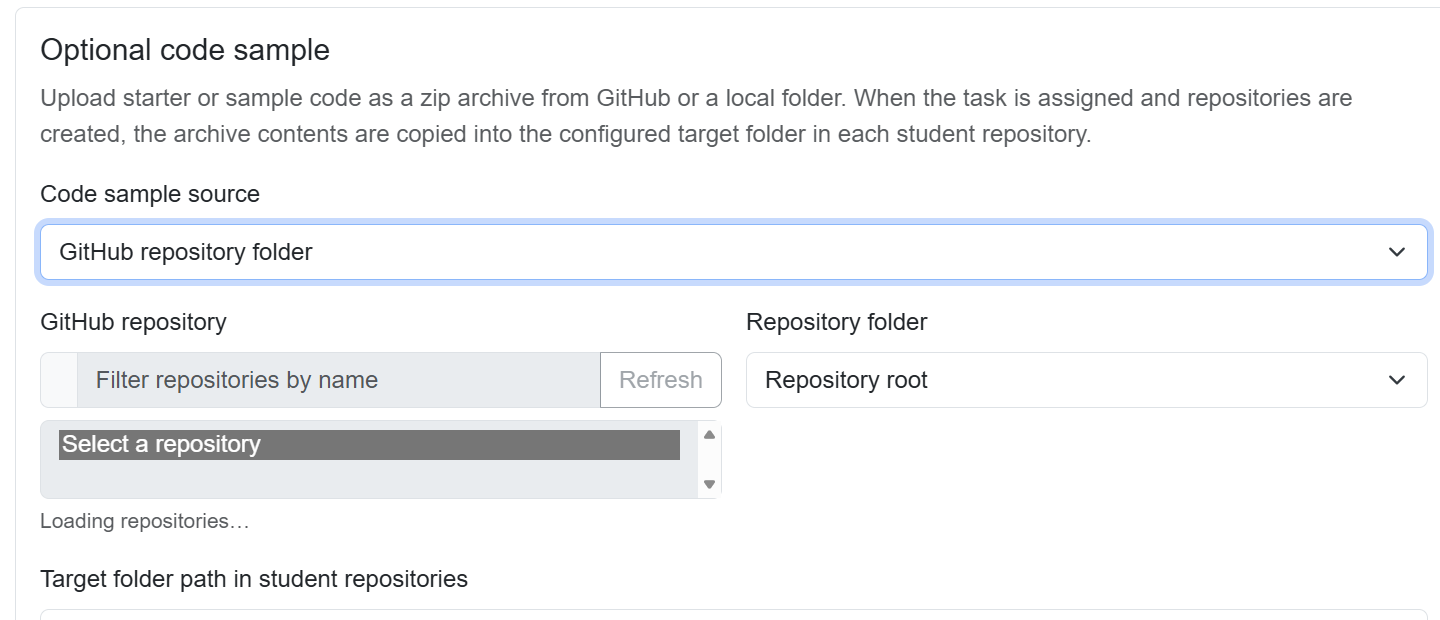
The first repository lookup can take longer while aiDACTO loads and caches the list. Select the repository and the folder containing the sample code. This source folder identifies the code to copy; it is separate from the destination folder,
lab1, entered above. The code is uploaded when you later assign the task to students.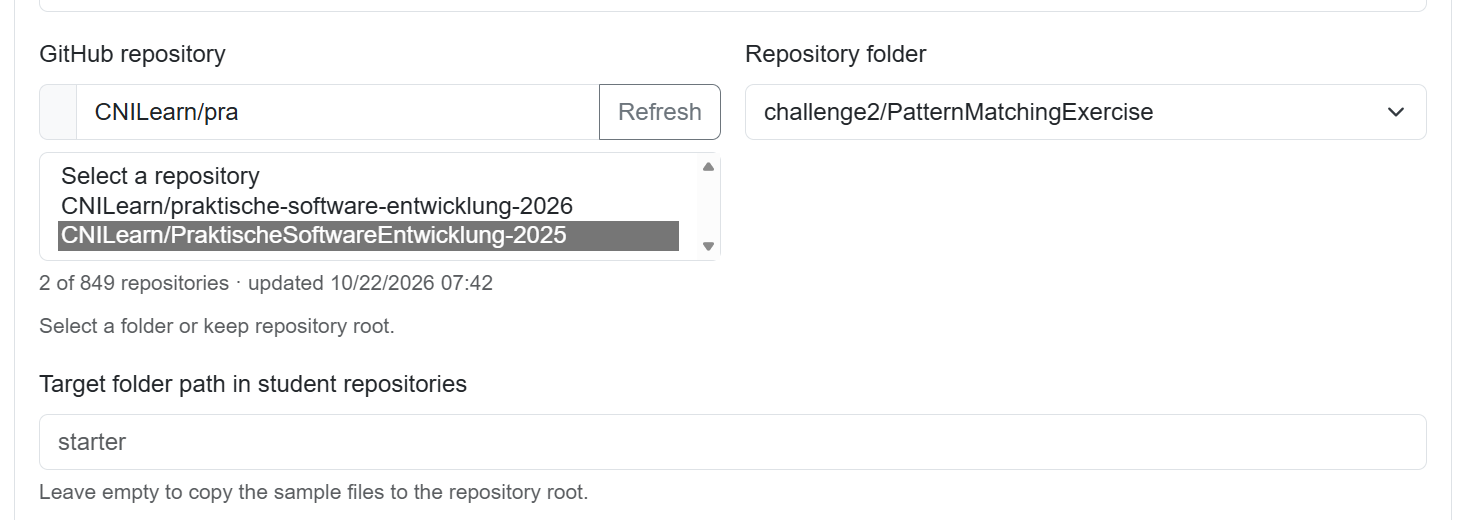
Choose the source repository and folder for the starter code. Analyze the sample code
Select Analyze sample to get information about the selected code. Review the analysis for ideas that can help you improve the exercise or make the Lector notes more precise. This analyzes the starter code, not a student's submission.
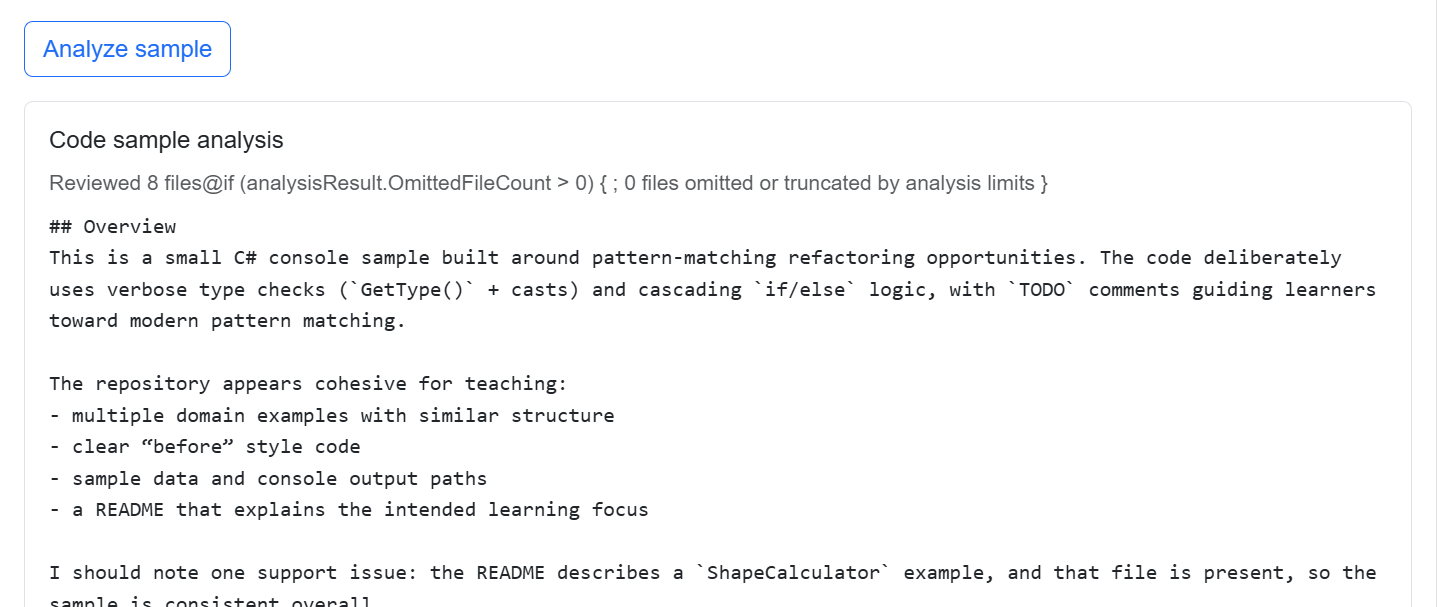
Use the sample analysis to help refine the exercise before generating the instructions. Leave ratings for a later tutorial
Below the optional code samples, deselect Create ratings for this task. The rubric and test-case areas are hidden when ratings are disabled. The agent skill template remains available regardless of this setting. Ratings, rubrics, and test cases will be covered in a separate tutorial.
Configure the AI agent and future submission analysis
Select an Agent skill template (AI generation); this example uses Homework - Agent Skill Prompt. This supplies additional instructions for AI-assisted task generation.
Under Analysis configuration, choose:
- Primary technology stack: use .NET / C# for this lab.
- Issue and report language: the language for findings, student reports, and GitHub issues.
- Additional technology stacks: select these if the exercise spans more than one stack, such as a C# API with a JavaScript front end.
- Technology notes: optionally provide framework or runtime details.
- Task kind: choose the scale of the work, from a small homework exercise to a multi-week team project.
The technology choices determine which language skills the analysis agents use. Task kind helps determine the analysis budget and model tier; leave Model tier override set to Automatic (recommended) for this tutorial. This analysis configuration is stored with the task for later use by the agents analyzing students' results. Configuring it does not start a submission analysis now.
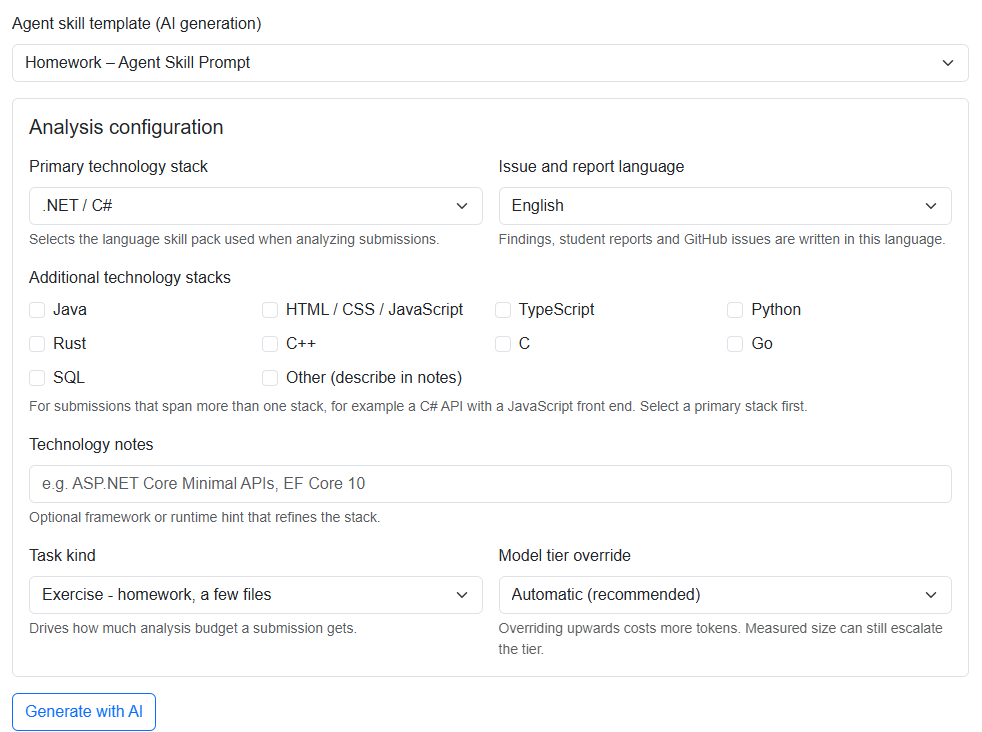
Select generation instructions and store the configuration for later submission analysis. Generate and review the student instructions
Select Generate with AI to create a draft from the information you entered. When generation finishes, scroll back to Markdown content and read the result. Check that it matches your learning goal, refers to the correct folders, and gives students clear instructions. Edit the generated content wherever needed.
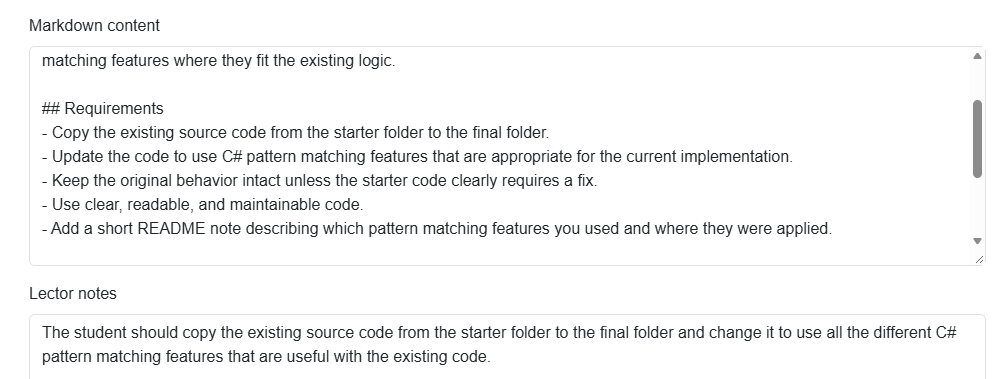
Review and adjust the AI-generated instructions before saving the task. Save the task
When you are satisfied, select Save Task. The task now appears on the Tasks page, ready to assign to students or groups later. Saving the task does not assign it, create student repositories, or analyze student work.
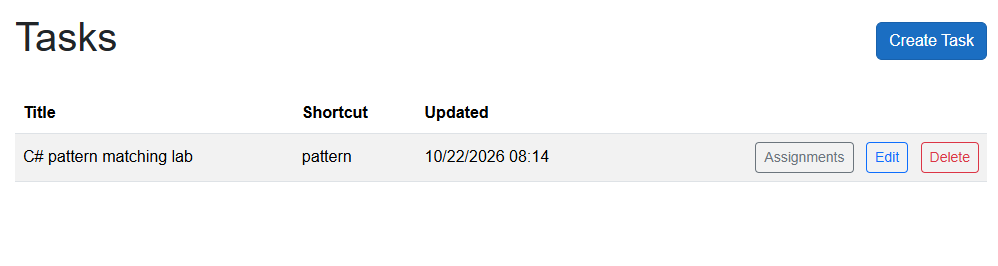
The saved lab is ready for the assignment workflow.
Step 6: Assign the task and create student repositories
Assigning the task creates the student or group assignments and, if you choose, creates GitHub repositories containing the task instructions and starter code. Before you begin, confirm that GitHub is connected and the preferred organization is the one where you want the repositories to be created. For repositories you want to create independently of tasks and reuse across multiple tasks, see Create repositories for multiple tasks.
Confirm your GitHub organization
Open GitHub Settings and check the Preferred GitHub Organization. Choose the organization that should own the student repositories. If it is not listed, make sure aiDACTO has organization access authorized in your GitHub settings, then return and select it. Select Save GitHub Settings before continuing to Tasks.
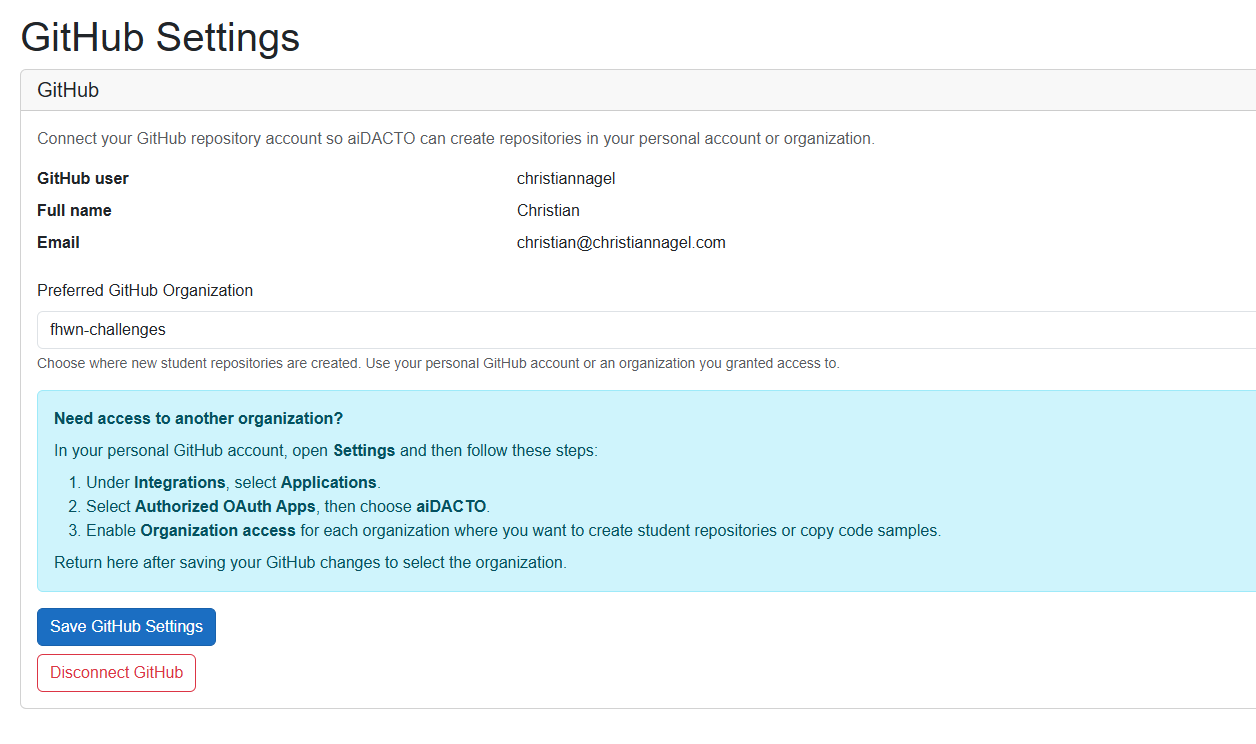
Choose the organization that will own repositories created for this class. Open assignments for the task
Go to Tasks. Find the task you want to assign and select its Assignments button. The task's assignment page shows its details and the available students and groups.

Open Assignments on the task you want students to complete. 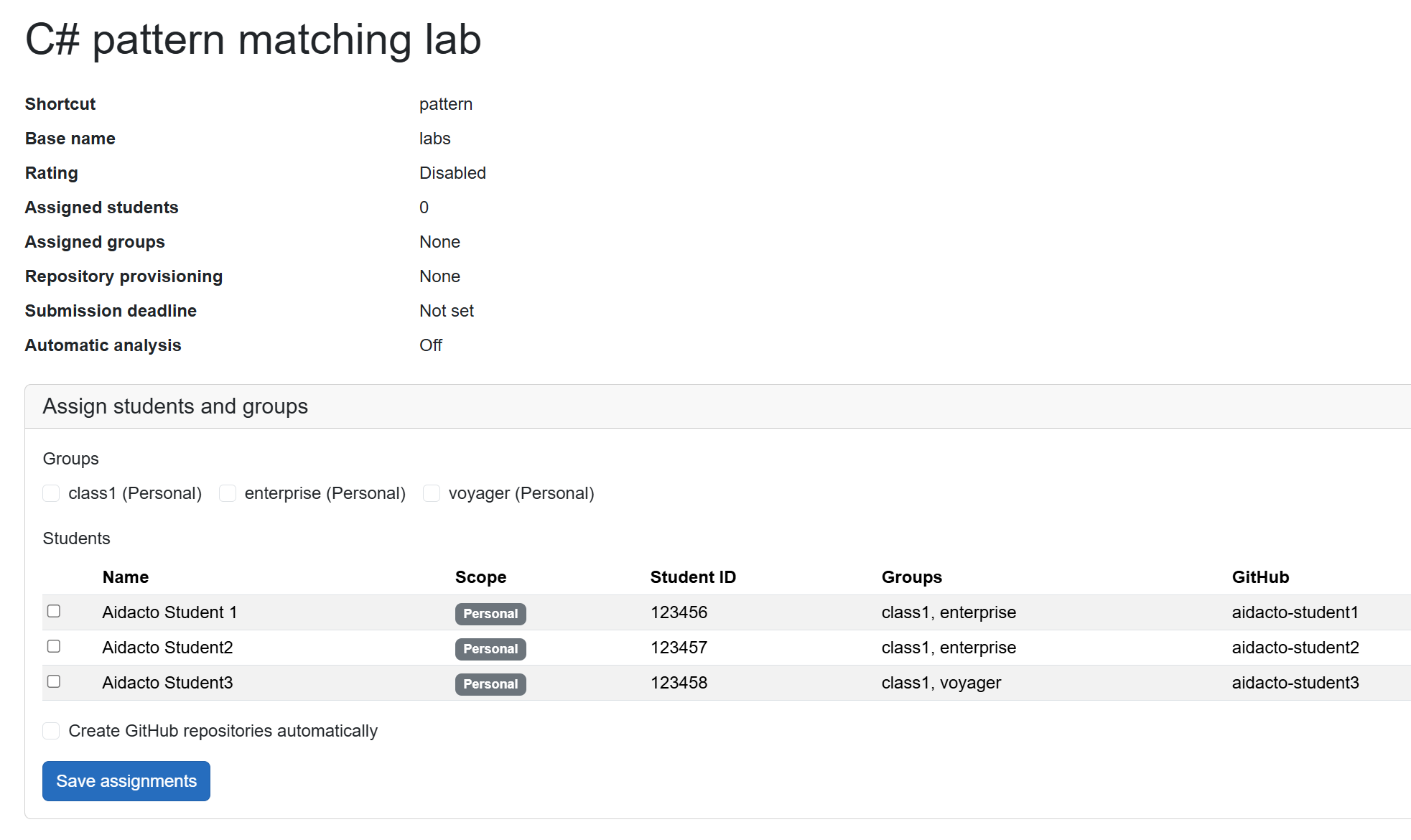
Review the task details before selecting students or groups. Select groups or students
Select one or more groups to assign the task to everyone in those groups, or select individual students instead. You can select multiple groups. Check that the intended students are included before saving the assignments.
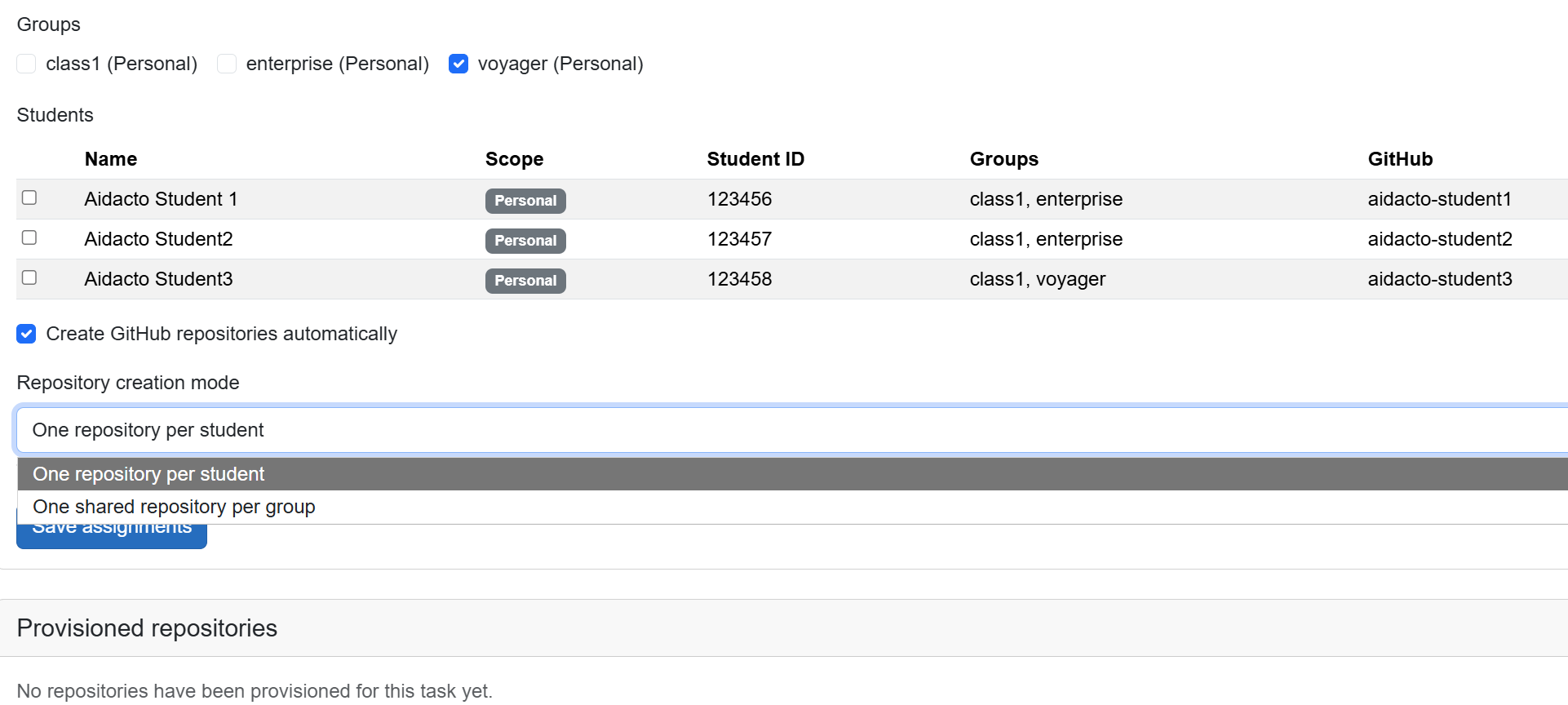
Choose the groups or students who should receive the task. Choose repository creation options and save
To create repositories automatically, check Create GitHub repositories automatically. Choose One repository per student for individual work, or One shared repository per group for group work. Select Save assignments to create the assignments and start repository creation. It can take a little while for GitHub repositories to be created; wait for the results to appear before navigating away.
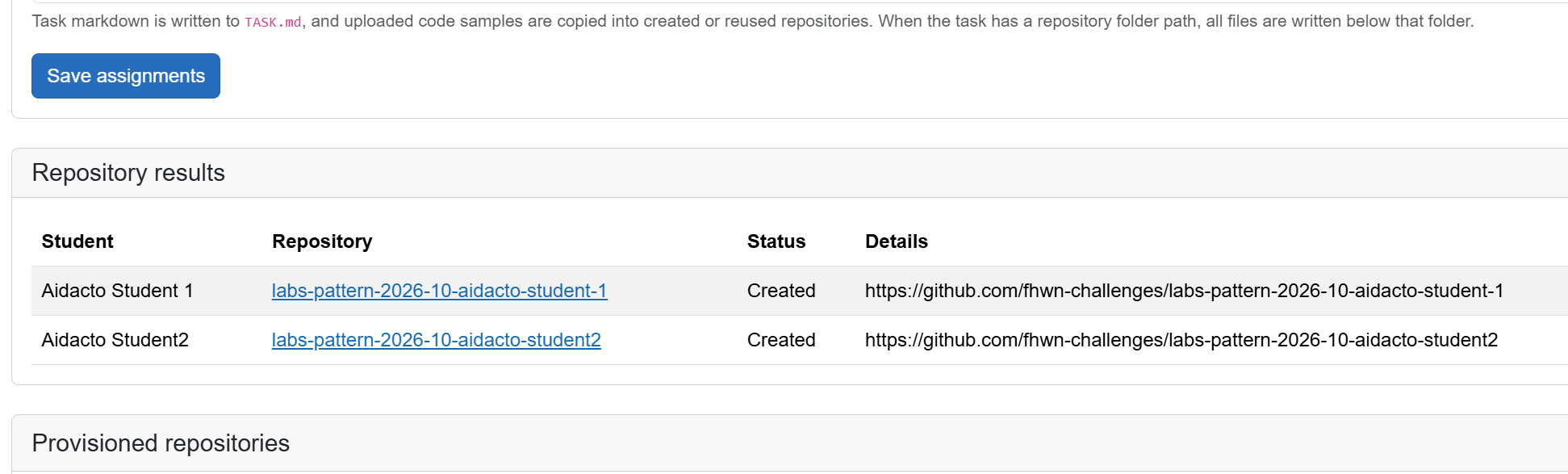
When provisioning finishes, the repository results include links to the new repositories. Check repository access and contents
Open a repository from the results. As the organization owner, you retain control over it. The assigned student or students are added as collaborators with write access so they can complete the task. You can verify access in the repository's Collaborators and teams settings.
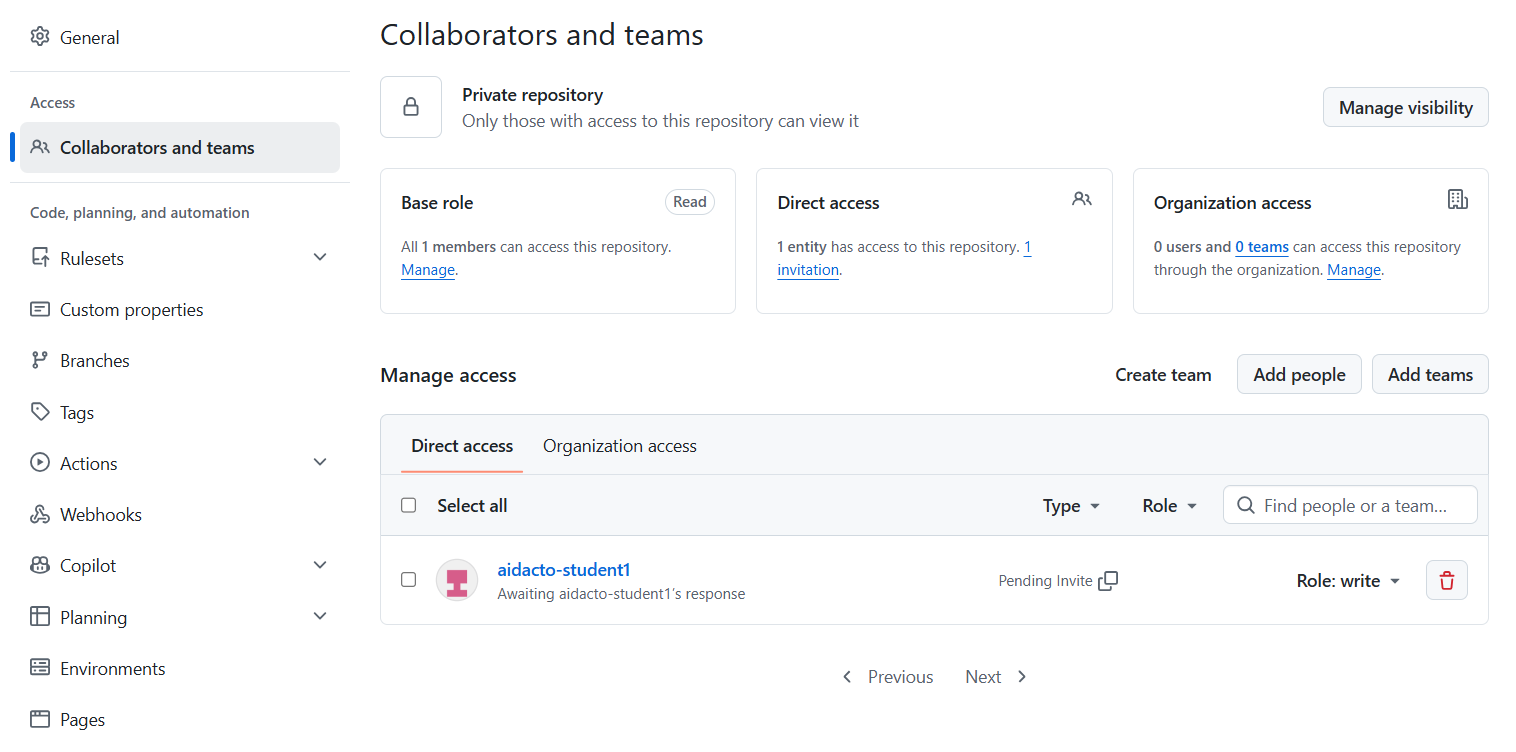
Assigned students receive write access to their repository. Check the folder you specified when creating the task. It contains the uploaded sample code and
TASK.md, which holds the task description. If no folder was specified, check the repository root.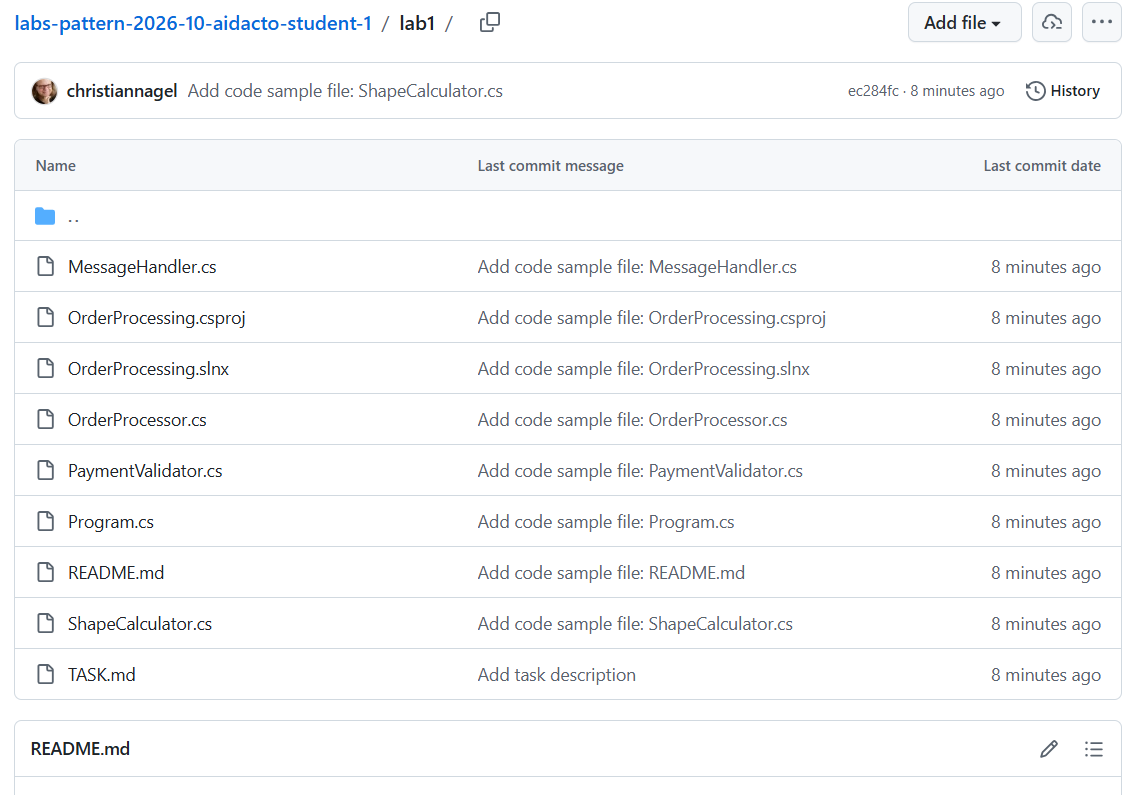
The task instructions and starter code are ready for students in the configured folder. Review all assignments
Open the Assignments page to see the assignments you created. Students can now open their repositories and begin working on the task.
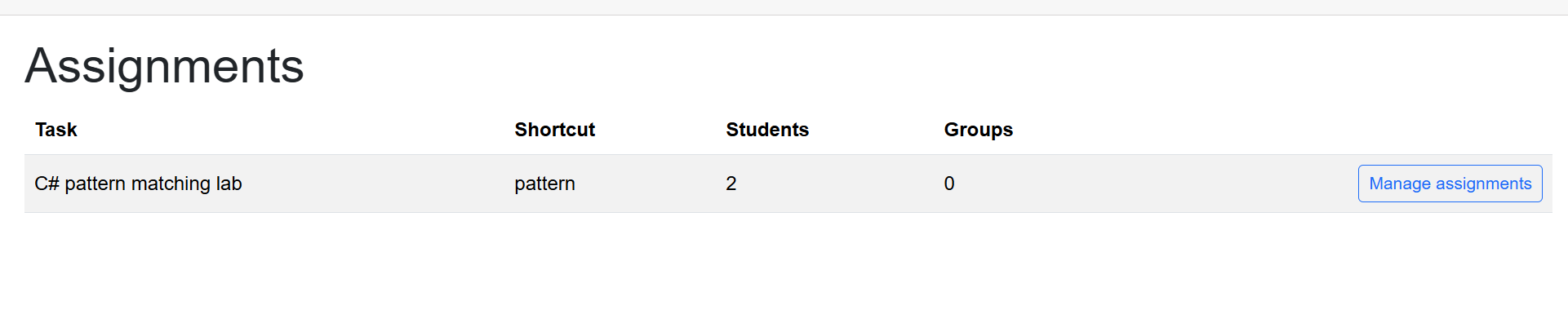
Use the assignments list to review the tasks assigned to students and groups.
Create repositories for multiple tasks
Use the Repositories menu to manage student repositories and create repositories independently of task assignments. This is useful for shared lab repositories that students can reuse across multiple tasks. To create repositories together with a task assignment, see Assign the task and create student repositories.
Open Repositories
Select Repositories in the navigation. This page lets you create repositories for multiple students at once, independently of any task.
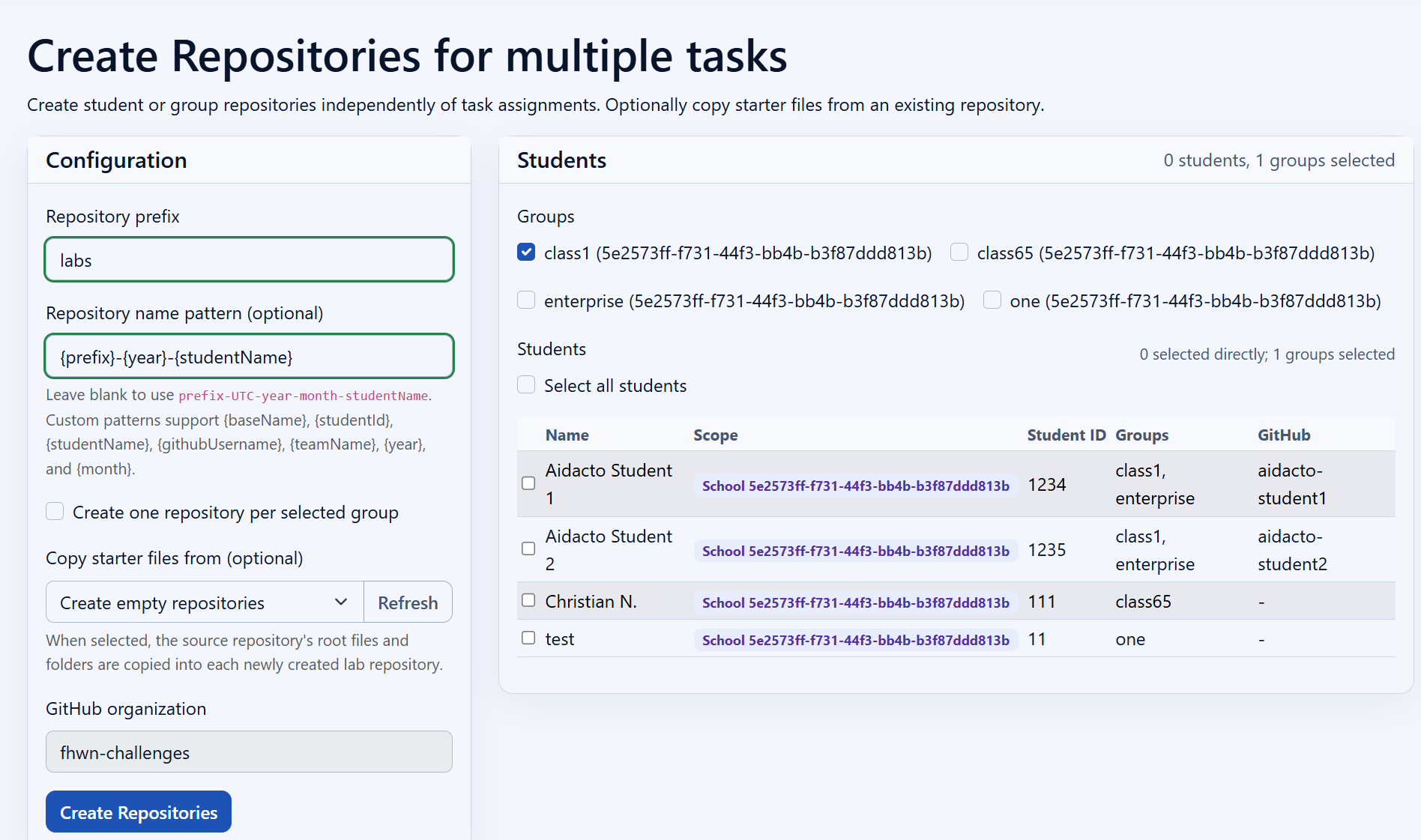
Open Repositories to create student repositories that are not tied to a task. Configure the repositories
Enter
labsas the Repository prefix. Set the repository name pattern to{prefix}-{year}-{studentName}. The pattern uses the prefix, current year, and each student's name.Leave Create one repository per selected group unchecked to create an individual repository for every student. To create empty repositories, leave the source selection set to Create empty repositories.
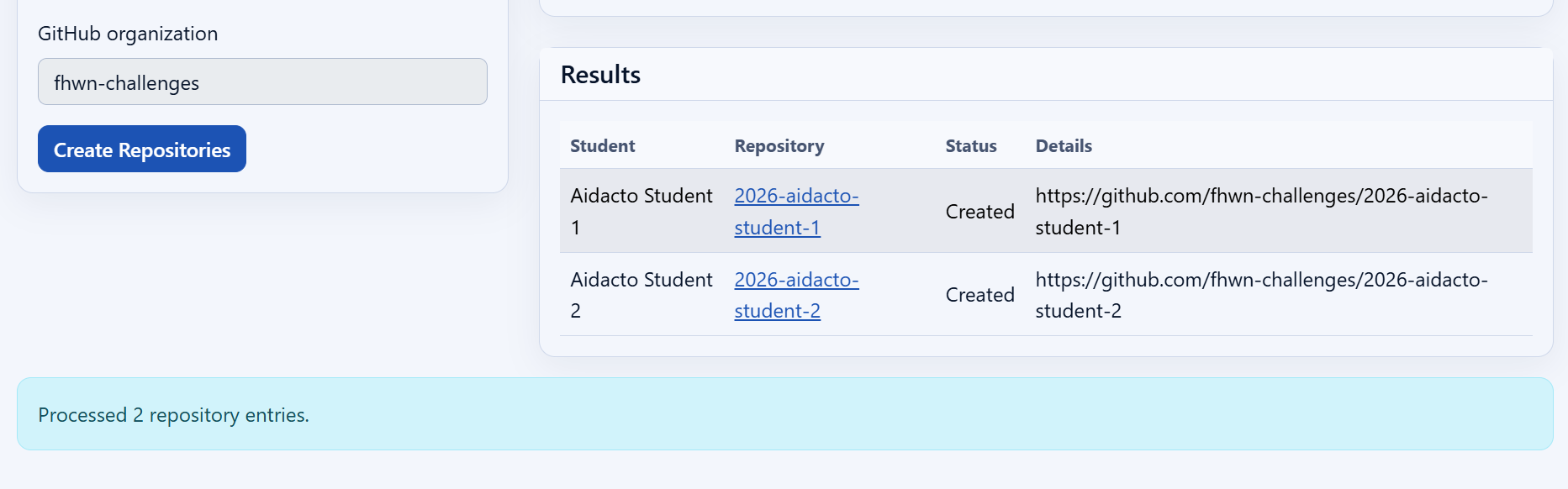
Set the prefix and naming pattern, and keep group repository creation unchecked for individual repositories. Select students and create repositories
Select every student, or select a group to include its students. Check that the GitHub organization is correct, then select Create Repositories. Wait for creation to finish; each new repository is created with write access for its student.
Step 8: Analyze student projects and publish feedback
After assignments and repositories have been created, students work on their projects and push their code to GitHub. You can analyze a completed project or an interim result; students do not need to finish the entire exercise before you review their progress. A cohort analysis reviews the student repositories for a task together, so you can see both individual findings and patterns across the class.
Open the assignment
Open Assignments in the navigation. Find the task you want to review and select Manage assignments.
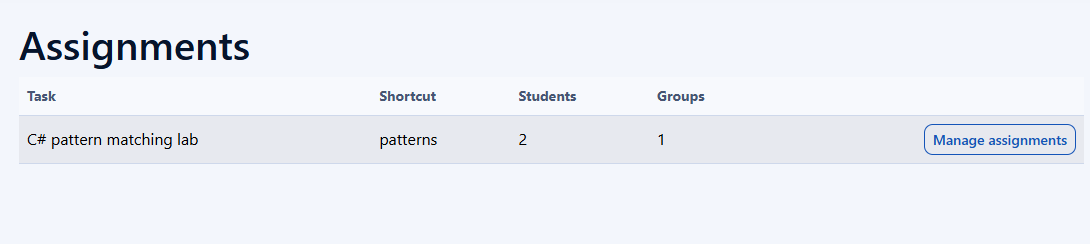
Choose the task whose student projects you want to analyze. Open the cohort analysis
The task page shows the task and its assigned students. Check that you have opened the correct task, then select Analyze cohort to open the analysis page.
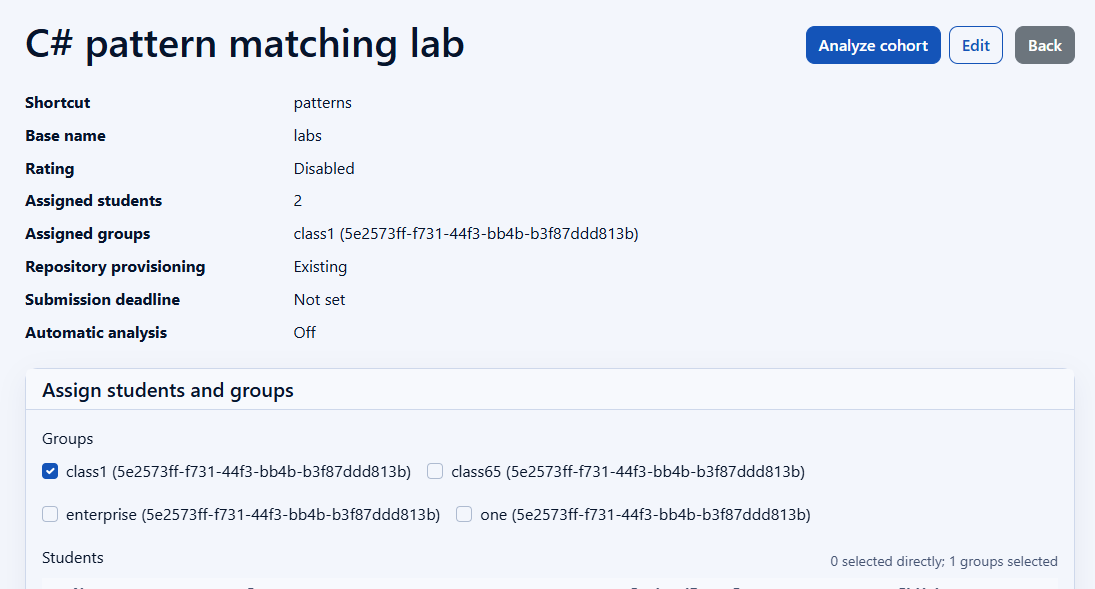
Start the cohort workflow from the task with its assigned students. Review the estimate and start the analysis
Opening the cohort analysis first calculates a Pre-flight estimate. The model tier is based on the exercise size specified for the task. Review the repositories, their number of files, code size, and estimated tokens, together with the projected weighted-token cost and remaining budget. If prompted for a higher-cost tier, acknowledge the projected cost before continuing.
Select Start analysis. Analysis can take some time, especially with many student repositories. You can leave it running and check the results later. With just a few repositories, it may be worthwhile to wait for the detailed report.
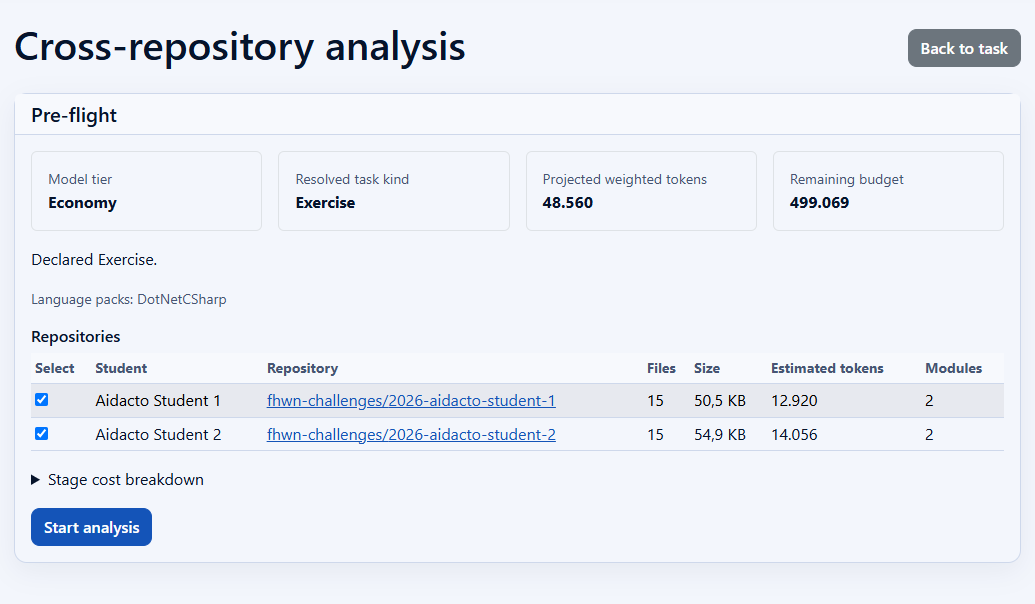
Check the estimated analysis size and token usage before starting. Read the finding matrix
When the analysis is complete, read the cohort report and its Finding matrix. The matrix brings together findings that are unique to one repository and issues shared by several repositories. Check each finding's severity, affected repositories, and commonality to understand which problems need individual feedback and which affect much of the class.
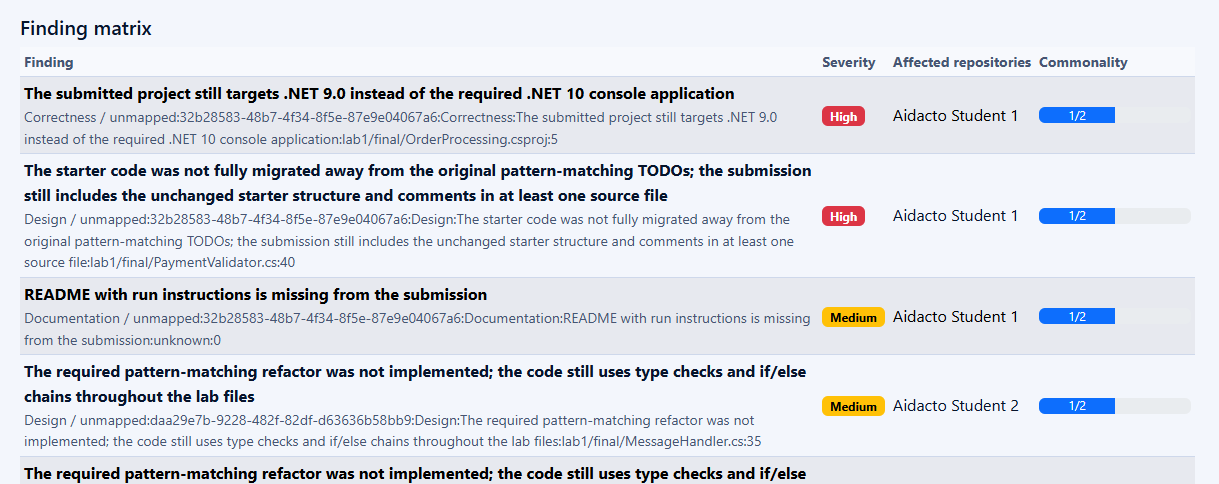
Compare individual findings and common issues across the cohort. Identify topics to revisit in class
Review Teaching gaps for recurring issues you might cover in a lesson or a shared example. Use these patterns to plan class-wide support, alongside the detailed feedback for each student's repository.
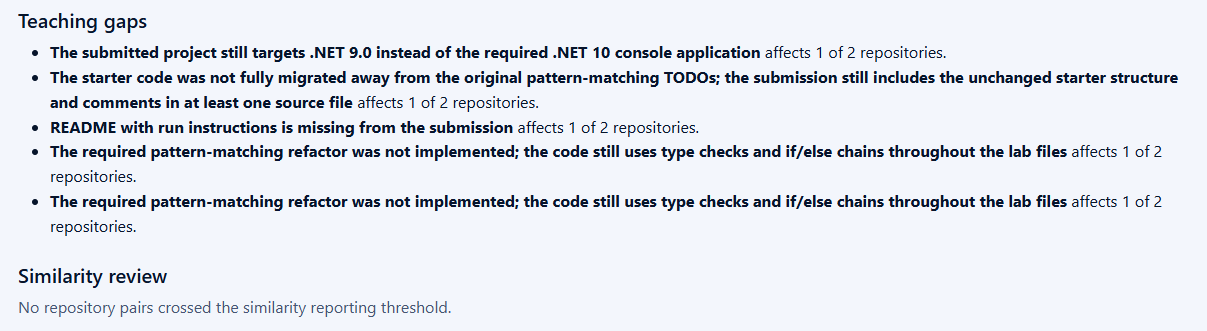
Use common findings to identify topics that may need more classroom attention. Review and customize every student issue
In Student issue approval, review the findings for each student's repository. Check the evidence and location, and customize the Issue title and Issue body to give the student clear, useful feedback. AI can be wrong, so do not publish findings without reviewing them. Choose an outcome for every issue:
- Mark false positive when the finding is incorrect. This feedback is recorded as agent memory to help future analyses avoid repeating the same incorrect finding.
- Not relevant for this task when the finding is correct but outside the current learning goals, for example because you will cover the topic later. It will not be published.
- Approve when the finding is correct, relevant, and should be shared with the student. Approval marks the issue as ready to publish; it does not create a GitHub issue yet.
Use Save draft if you need to save edits before deciding on an outcome.
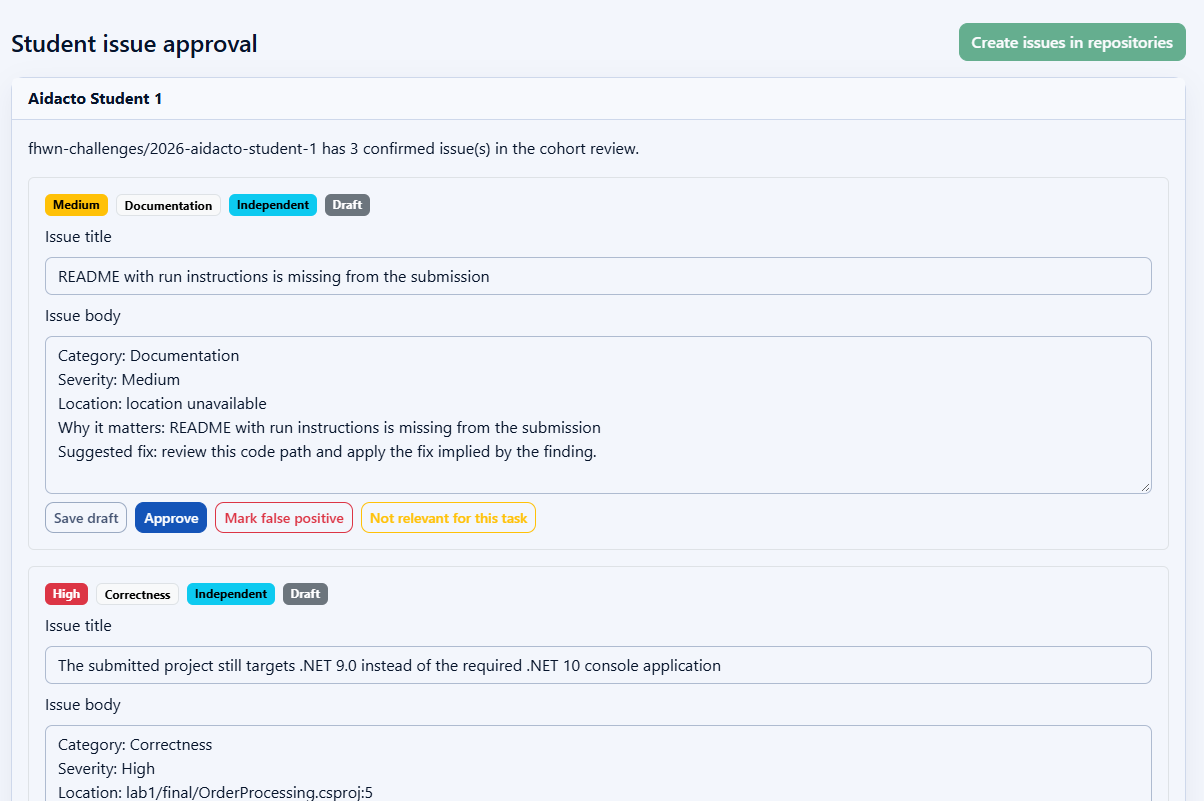
Review the evidence, adapt the feedback, and record your decision for each issue. Publish approved issues to the student repositories
After reviewing all issues, select Create issues in repositories to publish the approved findings. False positives, findings marked as not relevant, and unapproved drafts are not published. Follow the resulting GitHub issue links to check the feedback in the student repositories. Students can then see and work through the issues in their own repositories.
School administrator tutorials
As a school administrator, your main role is to support lectors at your school. There are no lector prerequisites to complete: you do not need to prepare a GitHub account or organization. Start by registering and signing in to aiDACTO.
Step 1: Register and sign in to aiDACTO
Use your school email address
Register with your school email address, and make sure you can access its inbox. Verifying this address helps verify that you are from the school. This is the address you will use to sign in, and aiDACTO also uses it to send notification emails. Verifying your email address does not automatically grant school administrator access.
Open registration
On the aiDACTO home page, select Login / Register in the navigation.
The Login / Register option opens the sign-in page. Create a new account
On the Sign in page, select No account? Create one. If you already have an aiDACTO account with your school email address, sign in with that address instead.
Choose Create one to register for aiDACTO. Enter your school email address
On the Create account page, enter your school email address and select Next. Use your own school address; the addresses in these screenshots are examples.
Enter your school address for sign-in and notifications. Verify your email address
A verification code is sent automatically to your school email address. Open your inbox, copy the code, enter it on the Enter code page, and select Next. The code is valid for 30 minutes.
If the email has not arrived, check your spam or junk folder and confirm that you entered the correct address. If the code expires, request a new code before continuing.
Enter the automatically emailed verification code within 30 minutes. Complete your details and sign in
Complete the remaining registration details when prompted, then sign in to aiDACTO. Initially, the application shows the lector features, including Students, Tasks, Assignments, Analysis, and Repositories. Your account menu appears at the bottom of the navigation, along with Connect GitHub if you have not linked your GitHub account yet. You do not need to connect GitHub for this school administrator tutorial.
After you are promoted to school administrator, the lector features may no longer be available following the role change. The screenshot shows the initial lector view, not the navigation after promotion.
Initially, you see the lector features. Available menus may change when your role changes.
Step 2: Request school administrator access
After signing in with your school account, send a request to the aiDACTO office to have your school administrator role reviewed.
Open your Profile
Open your account menu near the bottom of the left navigation pane and select Profile.
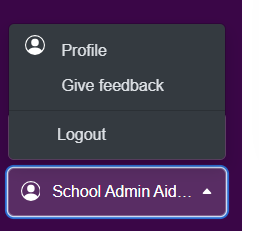
Use your account menu to open the Profile page. Open the administrator request form
On the Profile page, find Request School Administrator Access and select Request school administrator access. The form is hidden by default because most users do not need it.
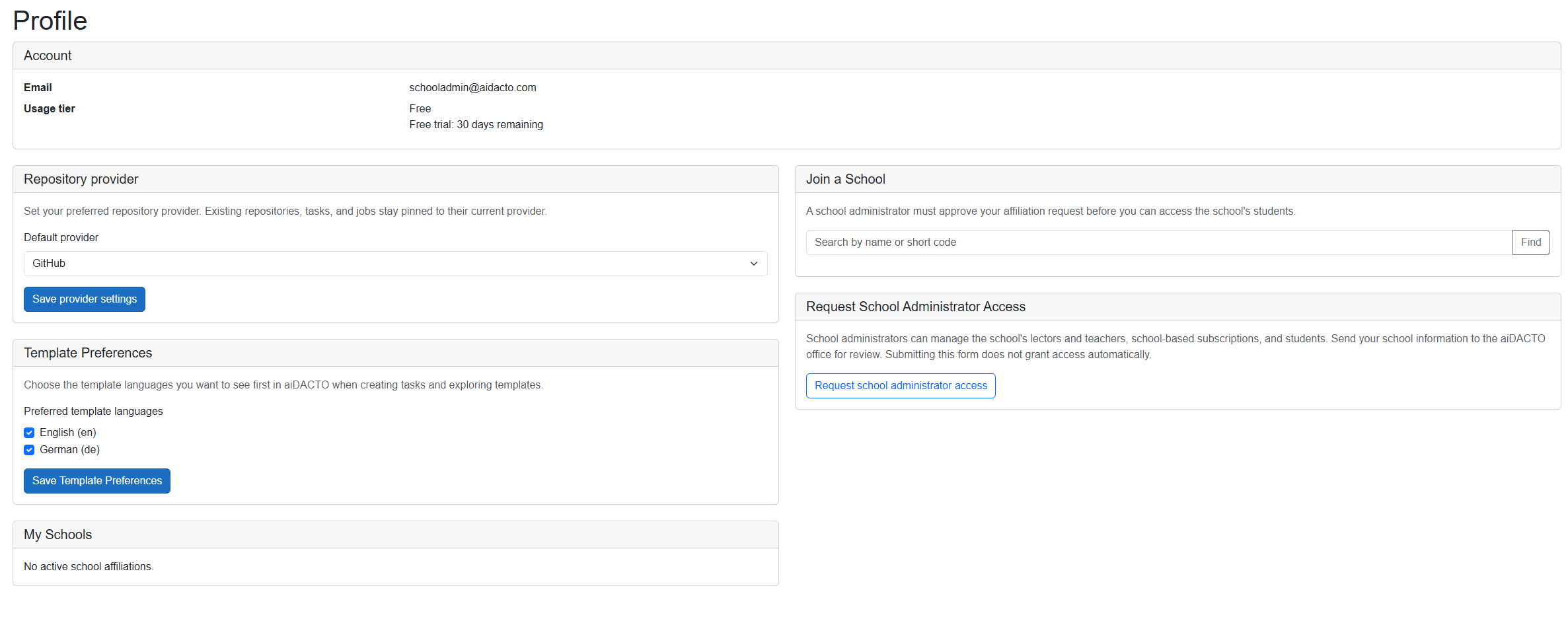
Select the request button to display the school administrator form. Enter your school details and comments
Fill in School name, City, and Country. You can also enter your Department, if applicable. Contact email is prefilled from your account. You can change it for this request, but use an email address from your school to help verify your school affiliation.
Use Comments (optional) to send any additional information to the aiDACTO office. You can enter up to 2000 characters. Use your own school details and email address; the screenshot contains examples.
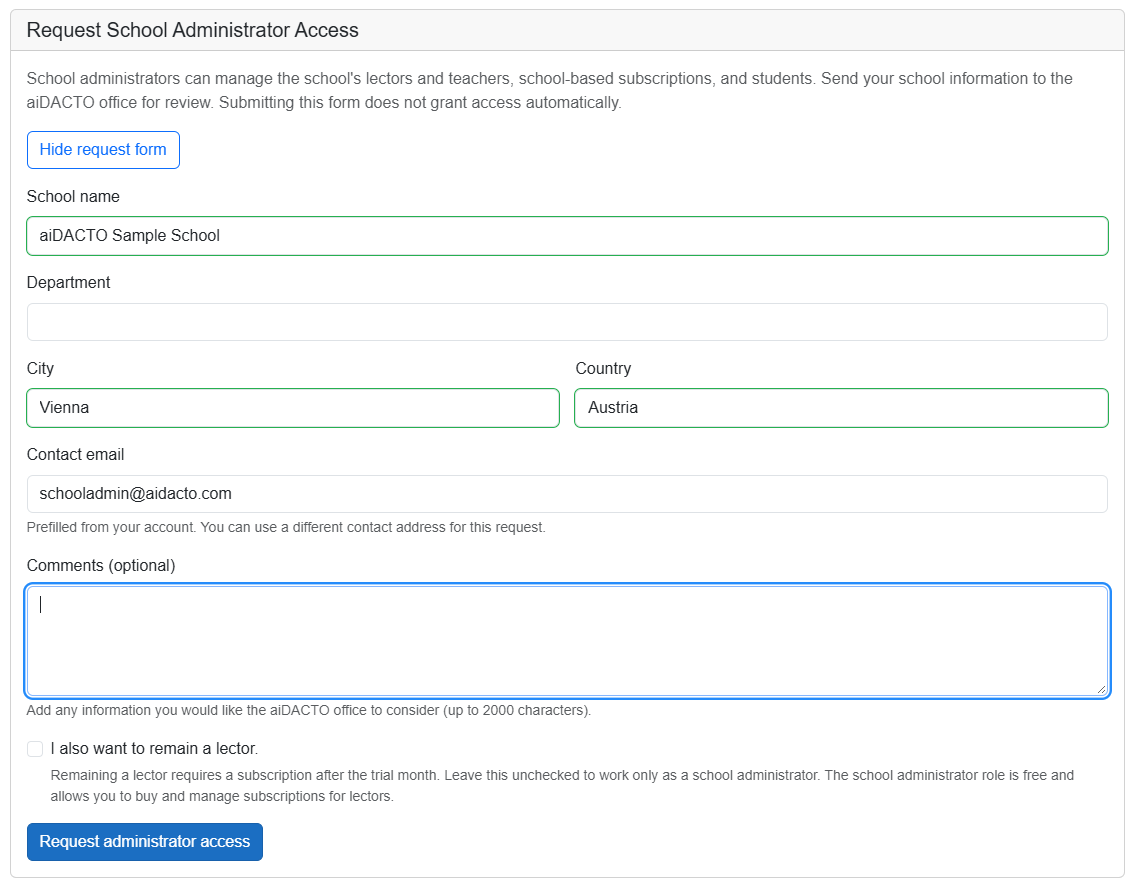
Provide your school details, check the contact address, and add any comments for the office. Choose whether to remain a lector
If you also teach, select I also want to remain a lector. Remaining a lector requires a subscription after the trial month. Leave the checkbox unchecked if you only want to work as a school administrator. The school administrator role is free and allows you to buy and manage subscriptions for lectors.
Without the lector role, menus such as Tasks, Assignments, and Analysis will no longer be visible once the role change is active. Select the checkbox if you need to keep using the teaching features.
Send the request and wait for activation
Review your information and select Request administrator access to send the request to the aiDACTO office. Submitting the request does not change your role immediately. It can take up to 24 hours for the role change to become active.
Step 3: Sign in again after approval
Once your school administrator role has been activated, sign out and sign in again to refresh your access. If the role is not active yet, allow up to 24 hours after submitting your request.
Review the updated navigation
The navigation now shows school-administration features, including School Templates, Manage Lectors, and Template Library. Lector menus such as Tasks, Assignments, and Analysis are no longer shown unless you also kept the lector role.
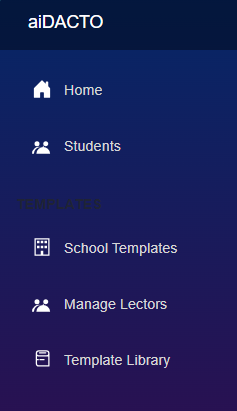
The available menus change to reflect your school administrator access. Confirm your school on the Profile page
Open your account menu and select Profile. The page shows your School administrator role and the school you administer. Git repository connections are no longer displayed on this profile page.
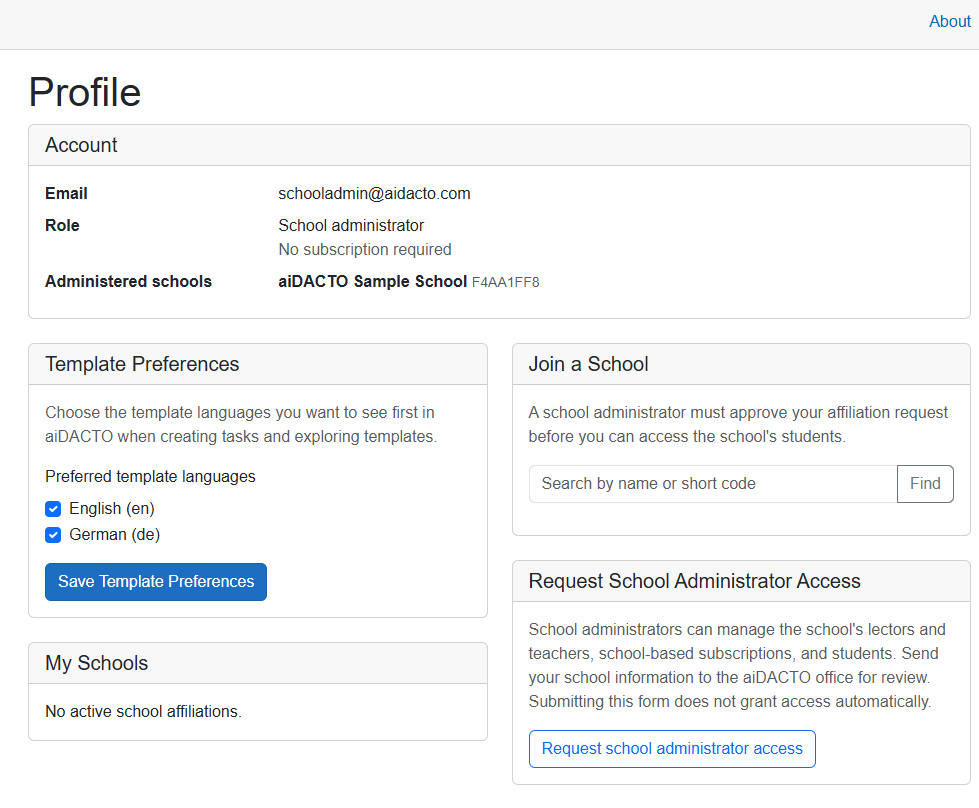
Verify your administrator role and school in your account profile.
Step 4: Manage students for your school
Open Students from the navigation to manage students for your school. You can add students individually, or use the import and export tools to work with a JSON or CSV file instead of entering every student manually.
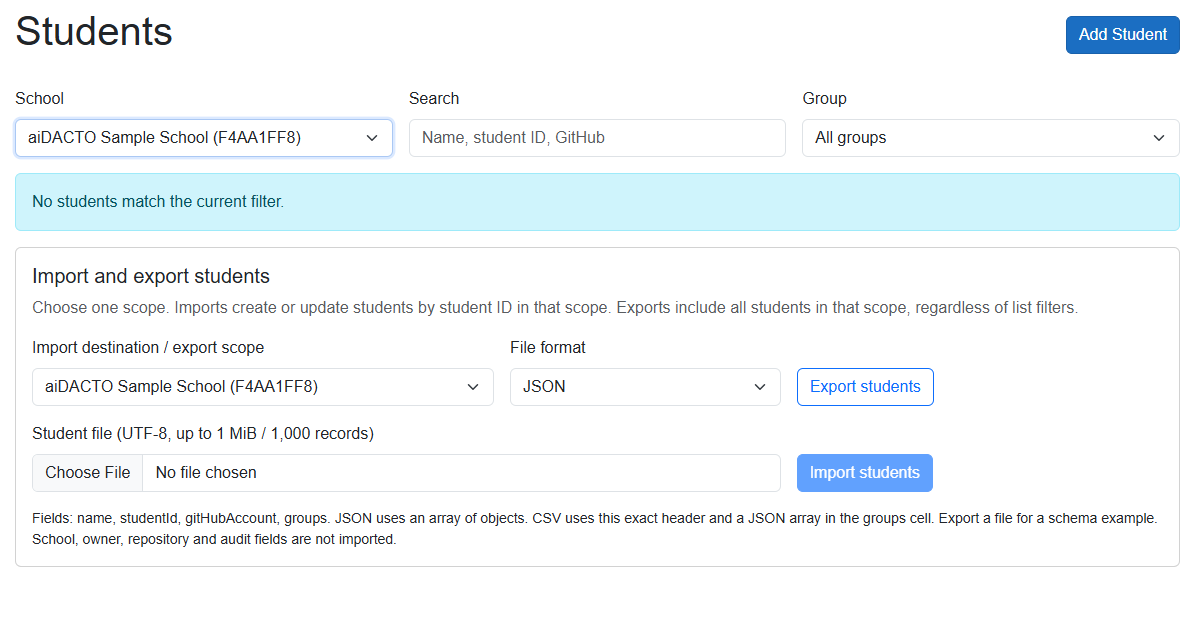
To add a student individually, select Add Student and enter the student's details for your school.
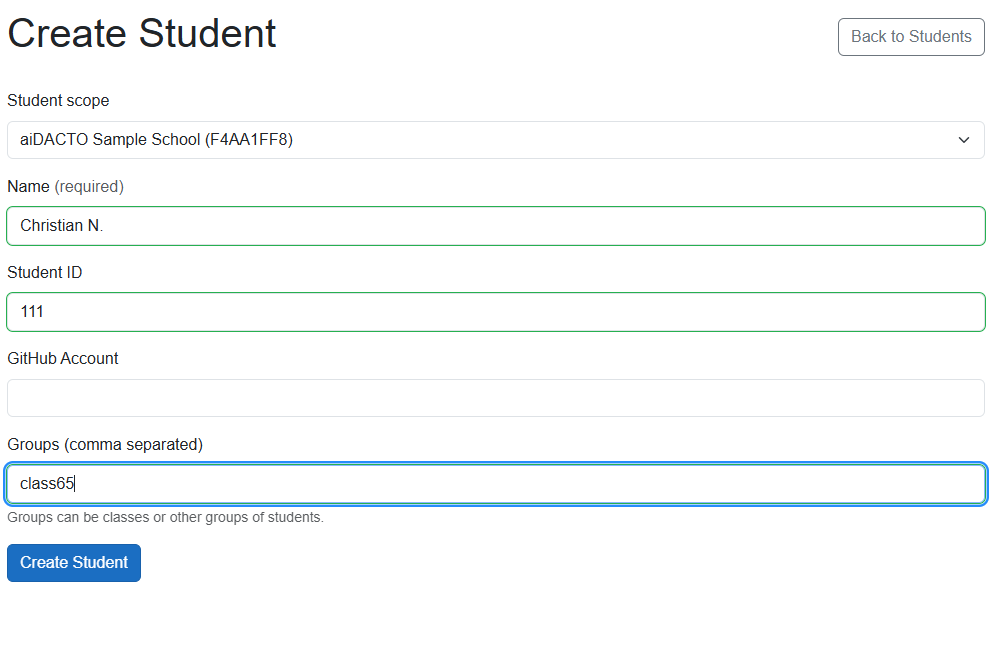
The controls are similar to the Students menu for lectors, including importing and exporting student lists. The difference is the scope: a lector manages only students in their own account, while a school administrator manages the school's students. Those students are accessible to all lectors associated with that school.
Step 5: Create a school template
Open the Template Library
Select Template Library from the navigation. The library lists global templates and templates created for your school. When your school is new and no school templates have been created, you will see only the global templates.
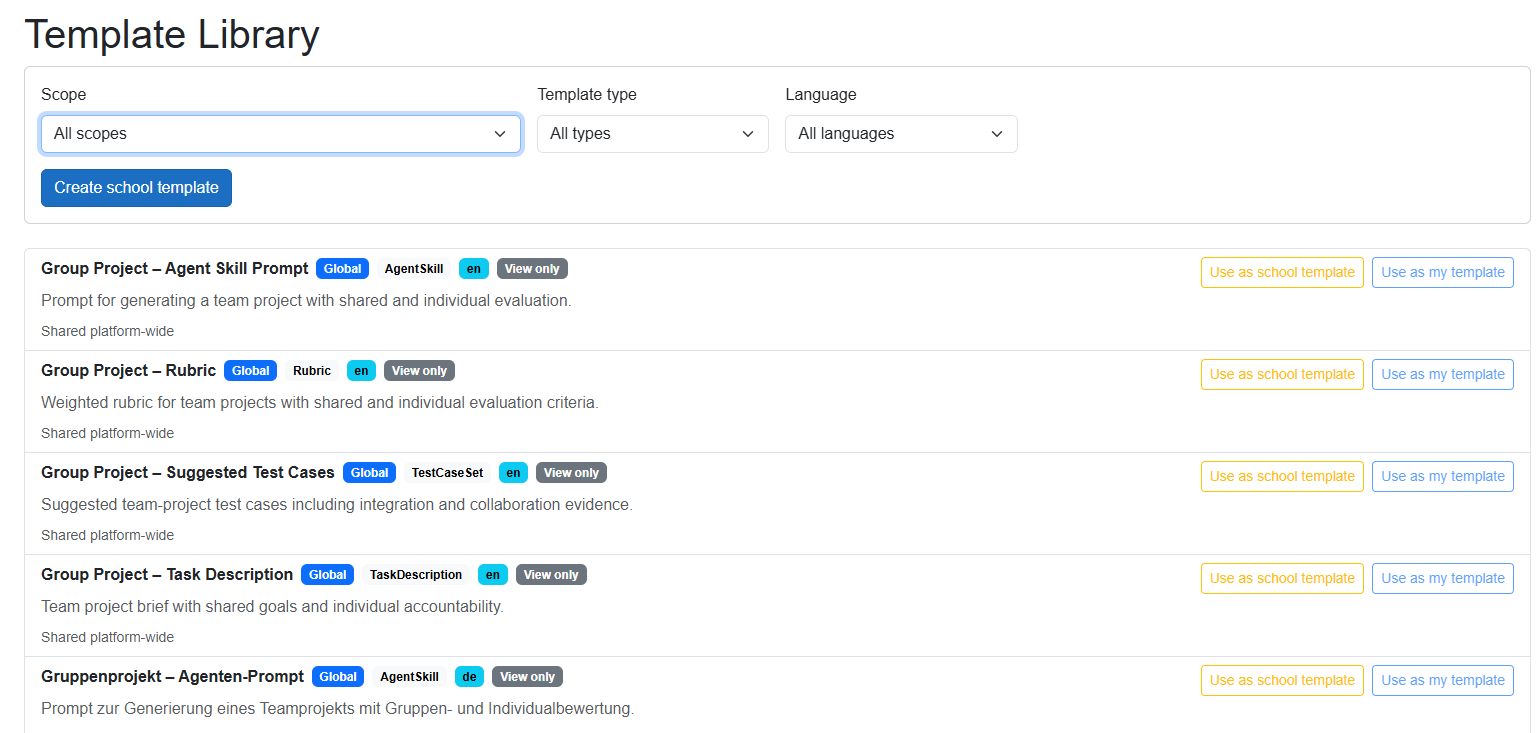
Choose a global template from the Template Library to use as the starting point for a school template. Start from a global template
Rather than creating a template from scratch, choose a global template and select Use as school template. This opens the template editor, where you can change all of the template's entries to fit your school's needs.
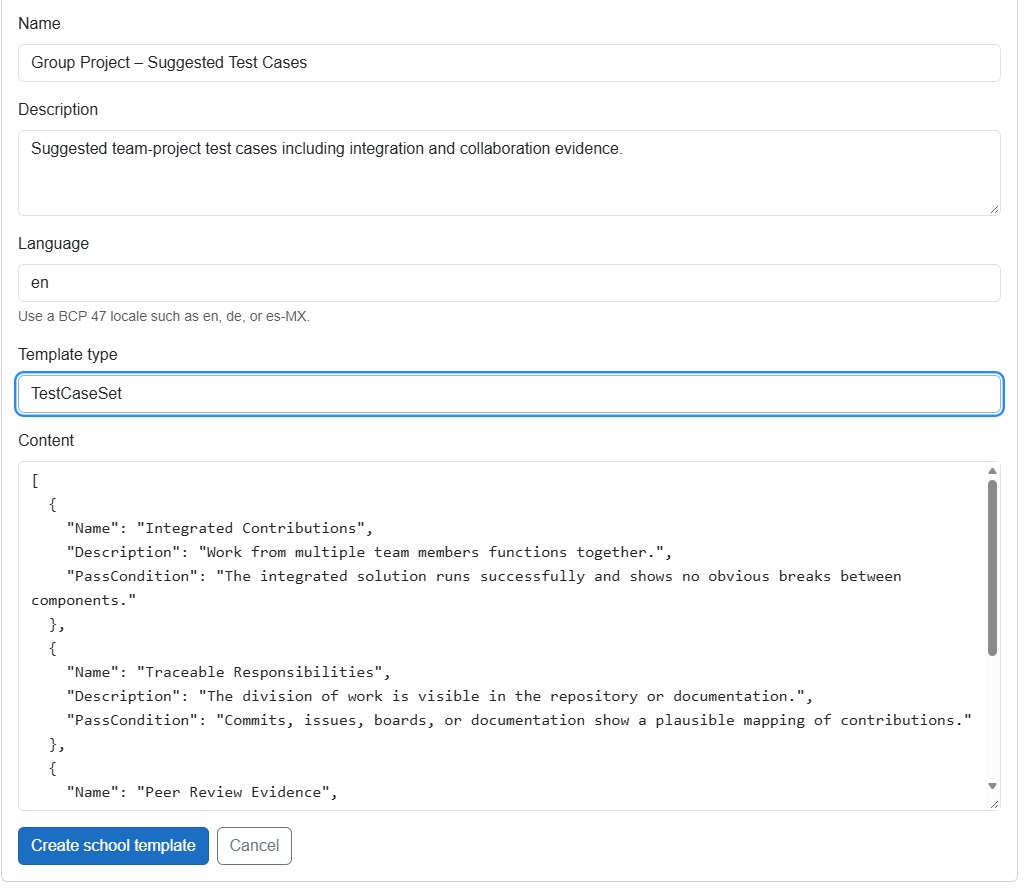
Edit the template entries, then create the school template when you are finished. Save and share the school template
When you have finished customizing it, select Create school template. The resulting school template is available to all lectors associated with your school. Each lector can customize it further and save that version as a private template for their own use.
Step 6: Approve lectors and assign subscriptions
Open Manage Lectors
Select Manage Lectors in the navigation. When your school is new, this page may be empty: no lectors have requested to join and none are assigned yet.
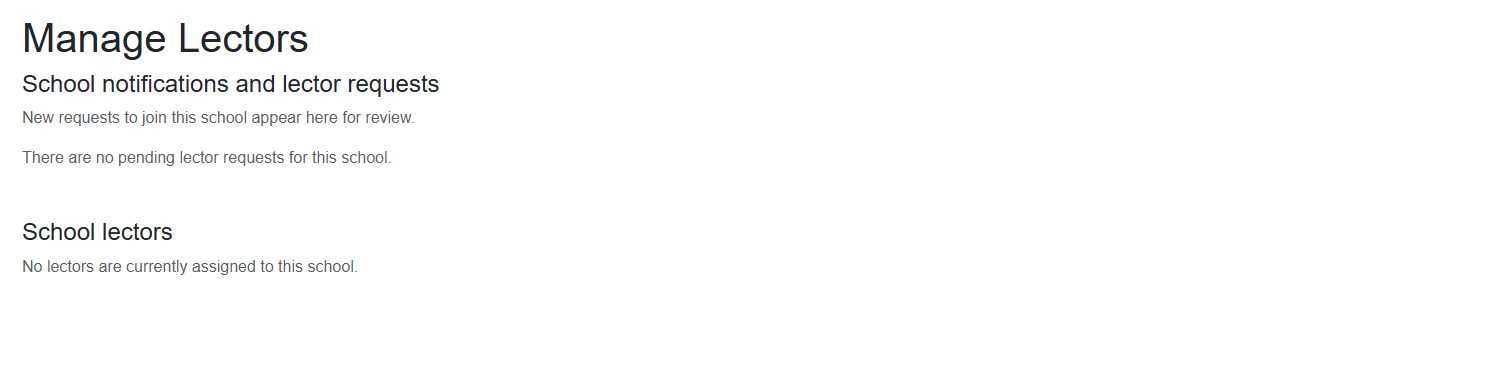
The page lists join requests for your review and the lectors assigned to your school. Wait for a lector to request school membership
The lector must sign in, open their Profile, find your school under Join a School, and select Request to join. When a lector requests to join, aiDACTO sends you an email notification to review the request.
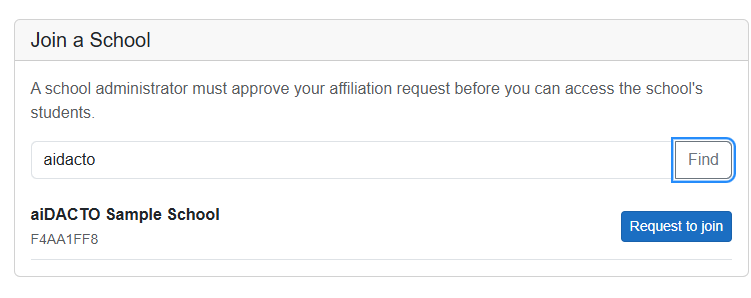
The lector starts the process by requesting to join your school from their Profile page. Review and approve the request
Open Manage Lectors to review the pending request. If you have confirmed that the lector belongs to your school, select Approve. The lector will then be listed among your school's lectors.
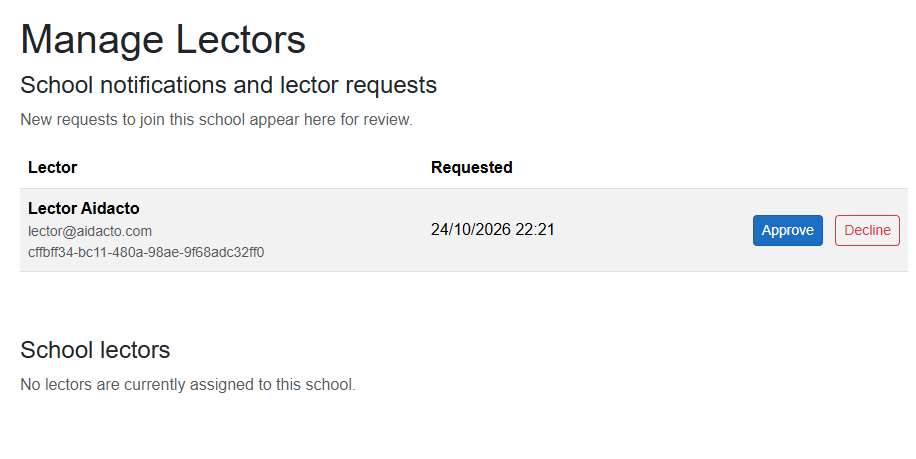
Approve a request only after confirming the lector belongs to your school. Assign subscriptions and share school resources
After approval, you can assign subscriptions to the lector. The lector also gains access to the school's students and school templates, which are shared with lectors associated with the school.
Coming next
Further tutorials will cover:
- Running submission analysis and reviewing generated findings.
- Submitting feedback to students.
- Creating tasks with ratings, rubrics, and test-case templates.
- Managing a school.
- Joining a school.
Want to get started before the tutorials are available? Schedule online a kickoff meeting, and we will walk you through aiDACTO.